Command Palette & Shortcuts
Command Palette & Keyboard Shortcuts
DodaMail is designed for high-efficiency keyboard-first navigation. Power users can navigate their entire mailbox, compose replies, apply labels, trigger backups, and change settings without touching the mouse.
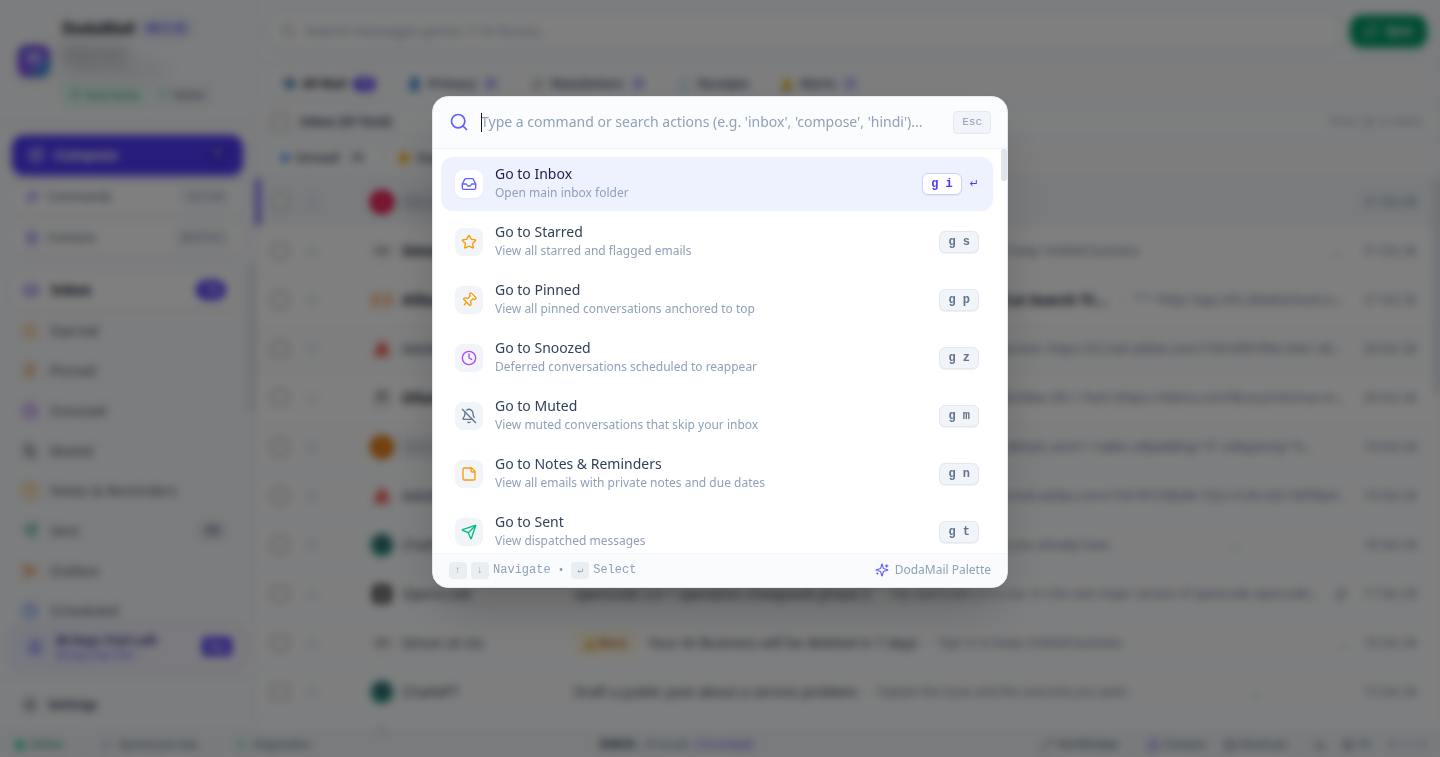
1. The Command Palette (Ctrl+K / Cmd+K)
Press Ctrl+K (Cmd+K on macOS) anywhere in the application to summon the Universal Command Palette (CommandPalette.tsx):
Features & Controls
- Fuzzy Search Input: Start typing any command name, action, folder, or contact.
- Categorized Results: Actions are organized into intuitive sections:
- Navigation: Jump to any folder, account, or label.
- Mail Actions: Compose, archive, mark read, snooze, trigger sync.
- System & Settings: Open specific Settings tabs, create backup, check license status.
- Keyboard Navigation: Use
Up(↑) andDown(↓) arrow keys to highlight items; pressEnterto execute immediately. PressEscto close.
2. Global Shortcuts Reference
| Shortcut (Win / Linux) | Shortcut (macOS) | Action Performed |
|---|---|---|
Ctrl + N | Cmd + N | Opens a new Message Composer window. |
Ctrl + K | Cmd + K | Opens the Universal Command Palette. |
Ctrl + , | Cmd + , | Opens the Settings Panel. |
Ctrl + F or / | Cmd + F or / | Focuses the SQLite FTS5 Search Bar. |
Ctrl + M or \ | Cmd + M or \ | Toggles Split View vs. Full Window Reading Pane. |
Shift + C | Shift + C | Opens the Contacts & Address Book Manager. |
Alt + I | Option + I | Toggles the Contact Intelligence & Relationship History sidebar. |
Ctrl + Shift + S | Cmd + Shift + S | Forces an immediate IMAP/SMTP Mail Sync. |
Ctrl + Shift + B | Cmd + Shift + B | Triggers a Full Local Backup export. |
? | ? | Opens the Keyboard Shortcut Help Modal. |
Esc | Esc | Dismisses active modals, lightboxes, or returns focus to thread list. |
3. Mailbox & Folder Navigation Shortcuts
| Shortcut | Destination / Action |
|---|---|
G then I | Jump to Inbox. |
G then S | Jump to Starred. |
G then T | Jump to Sent. |
G then D | Jump to Drafts. |
G then O | Jump to Outbox (Offline Queue). |
G then A | Jump to All Inboxes (Unified View). |
G then C | Open Contacts Manager. |
4. Thread List & Triage Shortcuts
| Shortcut | Action Description |
|---|---|
J or Down Arrow | Move cursor to Next Conversation. |
K or Up Arrow | Move cursor to Previous Conversation. |
O or Enter | Open highlighted conversation into the reading pane. |
X | Toggle selection checkbox on the highlighted conversation. |
* then A | Select All visible conversations in the list. |
* then N | Deselect All conversations. |
1 | Switch to All Mail category tab. |
2 | Switch to Primary category tab. |
3 | Switch to Social category tab. |
4 | Switch to Promotions category tab. |
5 | Switch to Newsletters category tab. |
6 | Switch to Receipts & Billing category tab. |
7 | Switch to Alerts & Security category tab. |
R | Reply to sender. |
A | Reply All to all recipients. |
F | Forward conversation. |
E | Archive selected conversations. |
# or Delete | Delete selected conversations to Trash. |
S | Toggle Star status on active thread. |
U | Toggle Read / Unread status. |
V | Open 1-Click Move to Label / Folder popover. |
L | Open Apply Label tagging checklist. |
Z or B | Open Snooze Dialog to defer email. |
! | Report as Spam / Junk. |
Right-Click | Opens the Thread Context Menu with quick actions (Open, Reply, Reply All, Forward, Move, Archive, Delete). |