Settings Panel Reference
Settings Panel Reference
Press Ctrl+, (Cmd+,) or click the Settings button in the sidebar to open the Settings Panel (SettingsModal.tsx). This reference documents every tab, dropdown, slider, checkbox, and action button available across configuration sections.
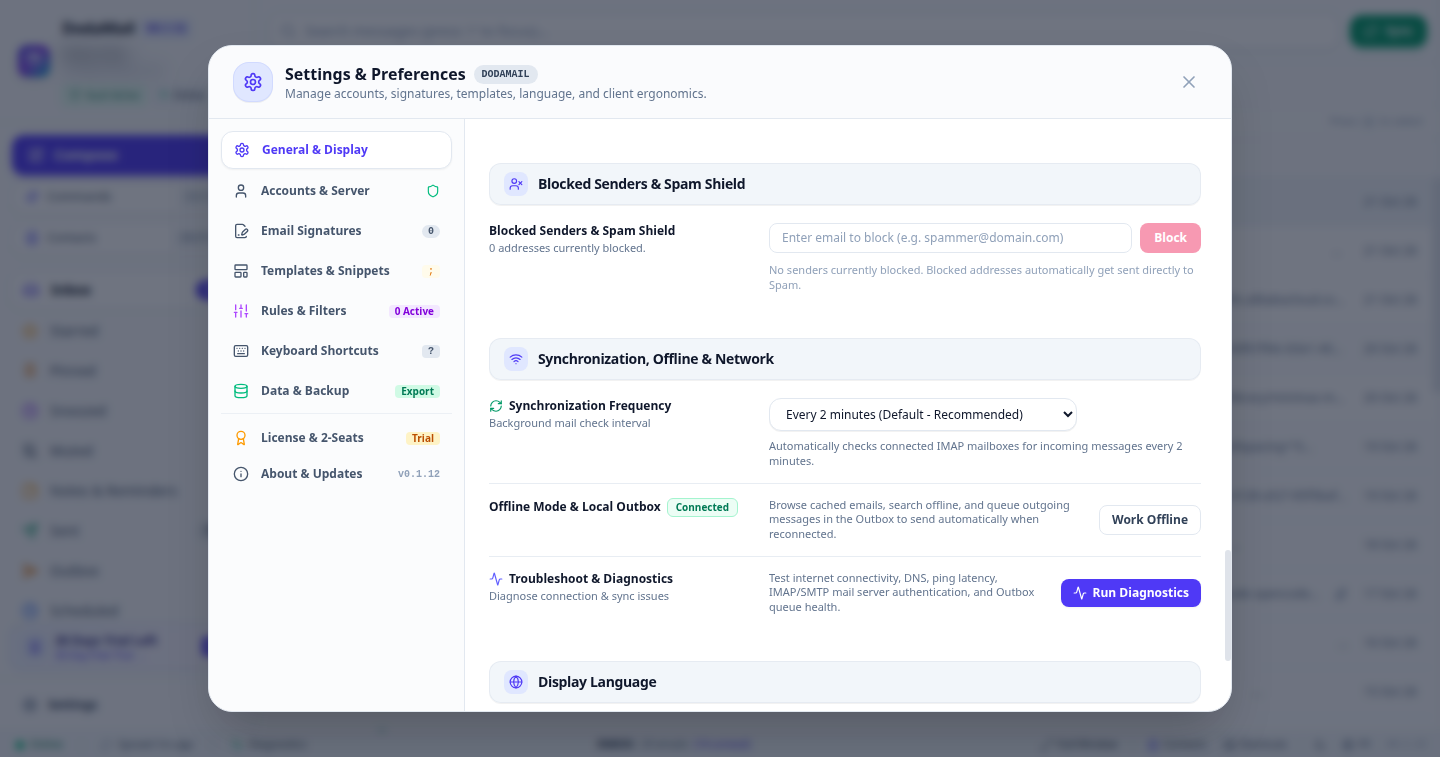
1. General & Display Settings Tab
Controls appearance, language, bottom status bar visibility, and baseline message handling.
| Control Name | Control Type | Options / Range | Default Value | Description |
|---|---|---|---|---|
| Theme & Color Mode | Toggle Button | Light Mode / Dark Mode | Light Mode | Switch between crisp Light mode and battery-saving Dark mode. |
| Maximum Emails Per Page | Dropdown Selector | 25, 50, 100 conversations | 50 per page | Controls page size in thread lists. |
| Sender Brand Logos & Domain Favicons | Checkbox | Enabled / Disabled | Enabled | Displays official brand logos and domain icons for business, newsletters, and service emails. |
| Bottom Status Bar | Checkbox | Enabled / Disabled | Enabled | Shows the bottom status bar displaying online status, live sync progress, network diagnostics, outbox count, and layout toggles. |
| Undo Send Cancellation Period | Dropdown Selector | 5s, 10s, 15s, Disabled | 5 seconds | Grace period to cancel an email after clicking send before SMTP dispatch. |
| Interface Language | Modal Trigger | 34 languages (Global & Indian) | English (US) | Updates all menus, tooltips, dialogs, and messages to the selected locale. |
2. Data & Backup Tab
Manages local data exports, backups, and disk usage. Detailed in Backup, Restore & Security.
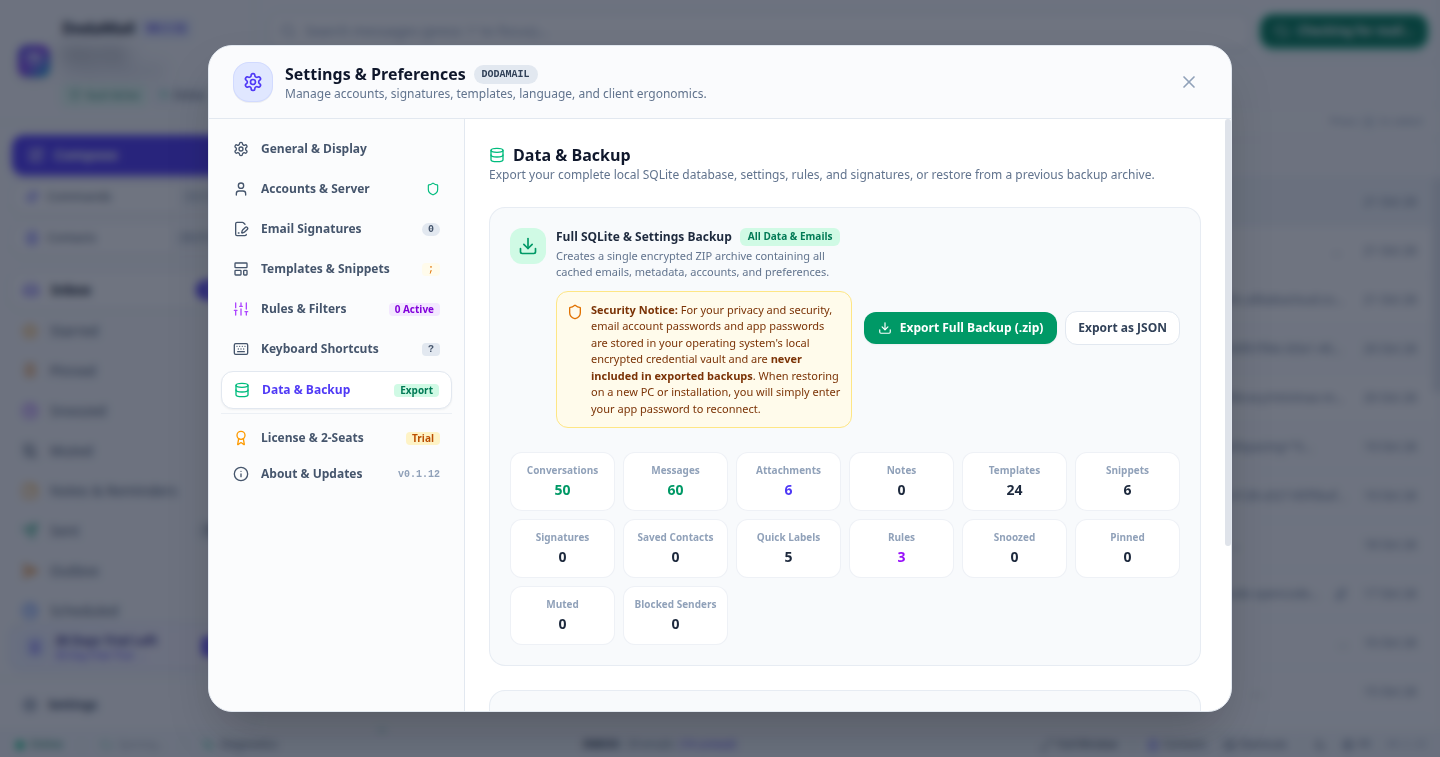
- “Export Full Backup (.zip)”: Creates a standard PKZIP archive bundling your SQLite database and
README.txt. - “Export as JSON”: Generates a lightweight JSON export for configuration portability.
- Security Notice: Highlights that passwords remain encrypted in your operating system’s local vault and are never exported.
- Metric Summary Grid: Displays live counts of conversations, messages, attachments, notes, templates, snippets, signatures, labels, and rules.
3. License & 2-Seats Tab
Manages registration, device seats, and renewals. Detailed in 2-Seat Device Licensing.
- License Status Badge: Displays Trial, Lifetime, or Subscription status.
- Product License Key Input: Enter or update 16-24 character product activation key.
- “Activate License” Button: Contacts store API to register machine.
- “Buy on store.dodatech.com” Button: Direct purchase link with FLAT30 discount code.\n