Offline Mode & Outbox
Offline Mode & Outbox Queue
DodaMail is built as an offline-first desktop client. Unlike browser-based webmail clients that lock up or fail when your internet drops, DodaMail gives you full access to read, search, organize, draft, and queue messages while on flights, trains, or in locations with unstable connectivity.
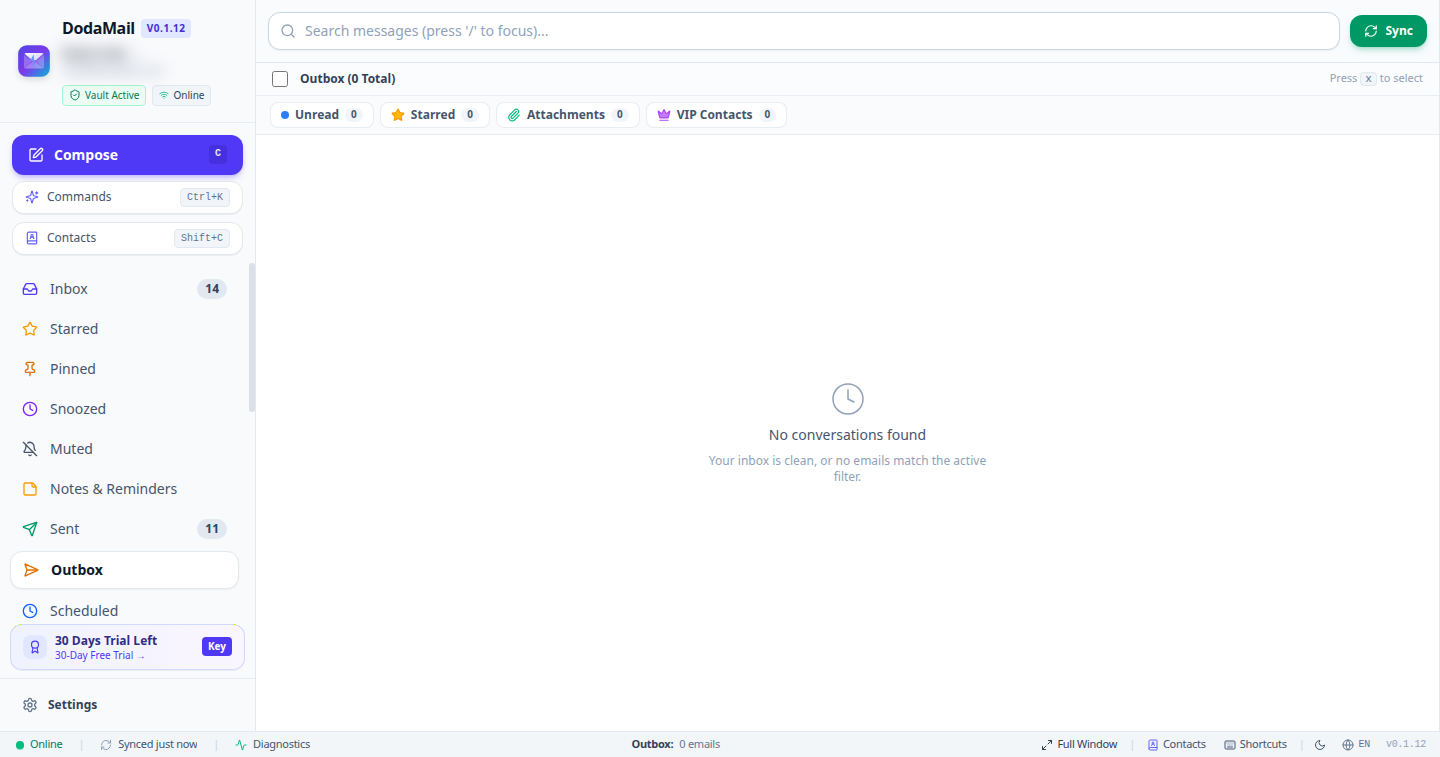
1. Offline-First Architecture
Every message, attachment thumbnail, contact record, and folder structure is mirrored in your local SQLite database. When you lose connection:
- Zero Interruption: You can browse your complete email history, open cached threads, view attachments, apply labels, move messages, and write responses.
- SQLite FTS5 Local Search: Full-text keyword searches continue to execute at full speed locally without needing a server connection.
- Deterministic Sync: Any actions taken offline (such as reading, starring, or deleting messages) are staged in a local transaction log and synchronized with your remote IMAP server as soon as the connection is re-established.
2. The Network Sentinel & Desktop Status Bar
DodaMail runs a native Network Sentinel (network.ts) in the background. It combines standard OS network event listeners with lightweight ping heartbeats to verify that your email server ports (IMAP 993 / SMTP 465) are actively reachable.
When connectivity drops:
- The Online dot on the bottom status bar transitions to Amber (Offline).
- Clicking the status badge allows you to manually toggle Work Offline mode.
- If emails are queued, the Outbox Queue Counter (
X in Outbox) lights up amber in the status bar with direct 1-click navigation.
3. The Outbox Queue (outbox.ts)
When you click Send while offline, DodaMail does not error or discard your work. Instead, it serializes the MIME envelope, stores all attachments in the local SQLite outbox table, and queues the message for delivery.
A badge appears next to the Outbox folder in the sidebar and in the bottom status bar displaying the number of pending emails.
Controls on Outbox Messages
Navigating to the Outbox folder in the sidebar displays the queue of pending messages. Each queued card provides granular controls:
- “Retry Now”: Immediately forces an SMTP connection attempt without waiting for the automatic retry timer.
- “Edit Draft”: Pulls the queued message out of the delivery queue and opens it back into the Message Composer, allowing you to update recipients, text, or attachments.
- “Move to Drafts”: Cancels outgoing delivery and transfers the message into your standard Drafts folder for future manual sending.
- “Delete”: Permanently removes the queued message from local storage.
4. Automatic Reconnection & Exponential Backoff
When the Network Sentinel detects that internet connectivity has been restored:
- Immediate Outbox Sweep: DodaMail opens an authenticated TLS socket to your SMTP server and delivers queued messages sequentially.
- Exponential Backoff on Server Errors: If the network is online but your mail server returns temporary 4xx transmission errors (e.g., rate limits or greylisting), DodaMail applies an exponential backoff schedule:
- 1st retry: after 1 minute
- 2nd retry: after 2 minutes
- 3rd retry: after 5 minutes
- 4th retry: after 15 minutes
- Delivery Notification: Once the outbox queue clears successfully, a system notification alerts you that all queued messages have been sent.\n