Interface & Navigation
Interface, Navigation & Thread Management
DodaMail is organized into a clean, intuitive 3-pane desktop workspace designed for high-volume email workflows. Every control, button, badge, and search filter is built for instant responsiveness, keyboard-driven efficiency, and complete local data sovereignty.
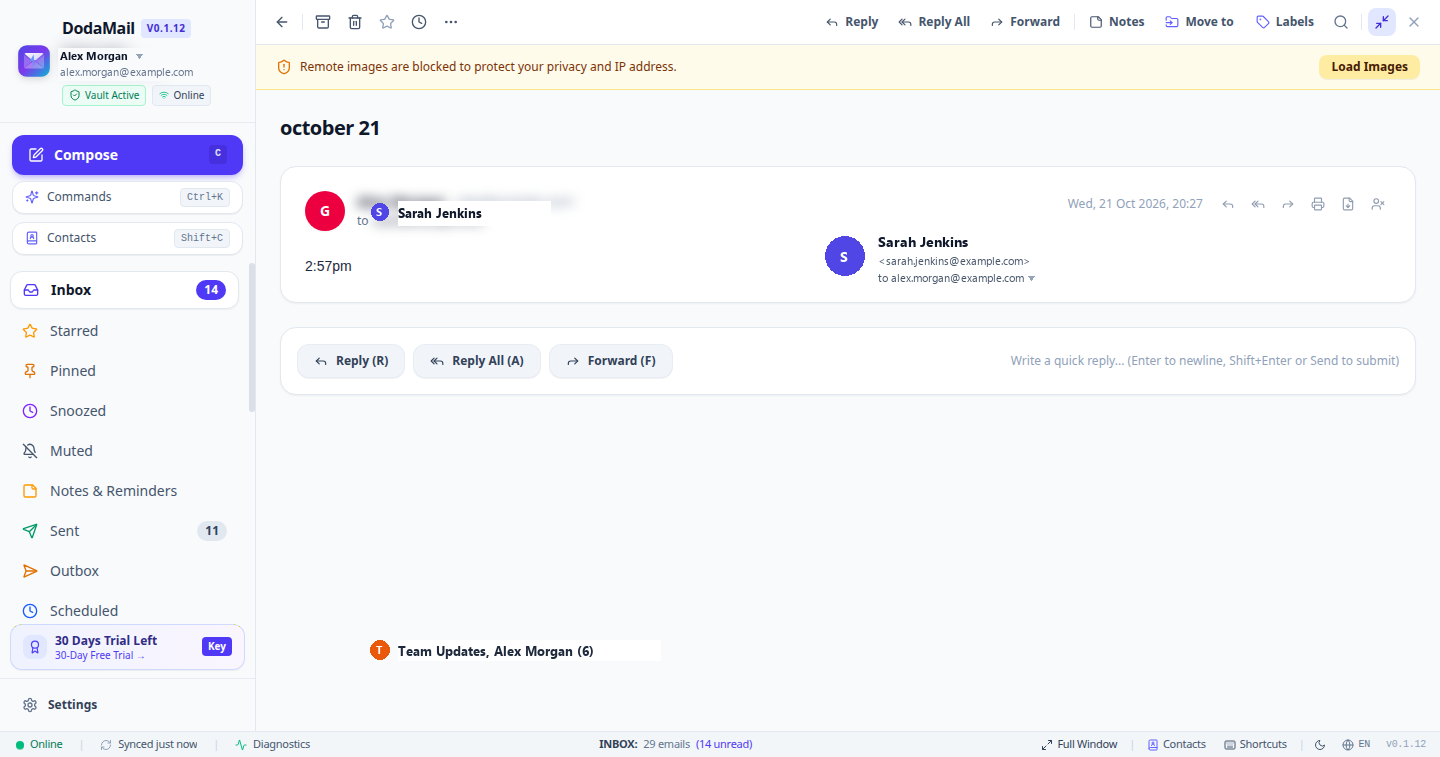
1. The Desktop Bottom Status Bar (StatusBar.tsx)
Located permanently along the bottom of the window, the Bottom Status Bar provides system vitals, live sync counters, quick layout toggles, and direct diagnostics access without cluttering the main workspace.
| Component | Control Type | Purpose & Behavior |
|---|---|---|
| Online / Offline Indicator | Toggle Button | Displays a green dot (Online) when connected, or amber (Offline) when disconnected. Clicking toggles Work Offline mode. |
| Relative Sync Timer | Action Button & Spinner | Shows live relative time elapsed since the last mailbox synchronization (e.g., Synced just now, Synced 4m ago). When synchronizing, displays a spinning loader and Syncing.... Clicking triggers an immediate sync. |
| 🩺 Diagnostics Button | Action Button | Launches the Troubleshoot & Connection Diagnostics Modal to test sockets, DNS, and licensing with one click. |
| Active Folder & Unread Metrics | Informational Text | Displays current folder title, total conversations, and unread count in real-time (e.g., INBOX: 29 emails (14 unread)). |
| Outbox Queue Counter | Status Pill (Amber) | Appears automatically when messages are awaiting outgoing delivery (e.g., 2 in Outbox). Clicking navigates directly to the Outbox folder. |
| Selected Threads Counter | Badge (Blue) | Indicates how many email threads are currently selected for batch triage (e.g., 3 selected). |
| Split View / Full Window Toggle | Layout Button | Switches between Split View (Thread list and Reading Pane side-by-side) and Full Window reading mode. Shortcut: Ctrl+M or \. |
| Contacts Quick Access | Action Button | Opens the Contacts & Address Book Manager (Shift+C). |
| Shortcuts Reference | Action Button | Displays the complete keyboard shortcuts overlay (?). |
| Theme Toggle (🌙 / ☀️) | Theme Switcher | Instantly toggles between battery-saving Dark Mode and crisp Light Mode. |
| Language Switcher (🌐) | Locale Selector | Displays the active interface language code (e.g., EN, HI, MR, ES) and opens language settings covering 34 international and Indian regional languages. |
| Build Version Badge | System Information | Displays currently installed client release (e.g., v0.1.12). |
Tip
The bottom status bar can be toggled on or off at any time under Settings -> General & Display -> Bottom Status Bar.
2. The Sidebar Navigation Pane (Sidebar.tsx)
The sidebar provides access to your account selector, message composition, system folders, custom labels, offline outbox status, trial monitoring, and configuration settings.
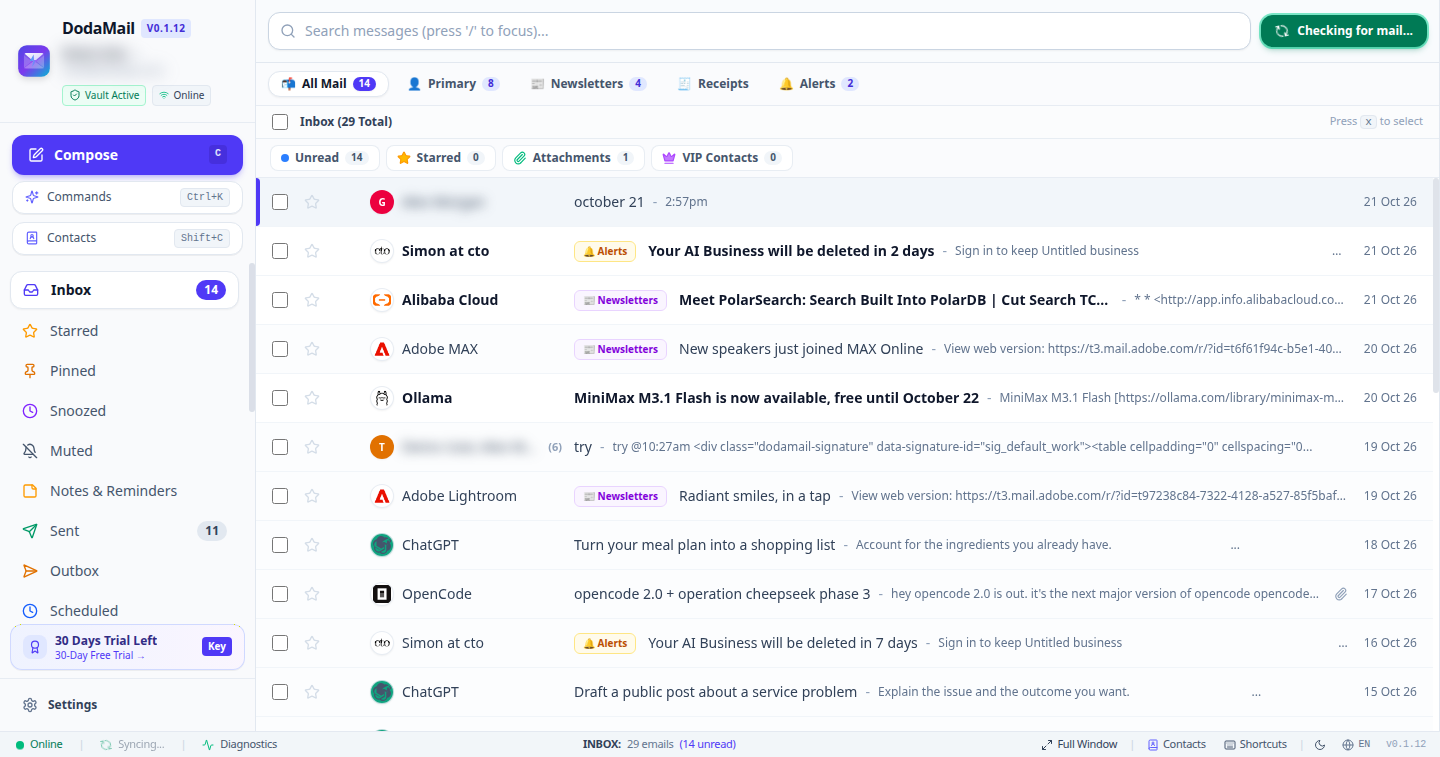
Controls on the Sidebar
| Control Name | Control Type | Description & Functionality |
|---|---|---|
| Sidebar Collapse / Expand | Toggle Button | Collapses the sidebar into a slim, compact icon-only mode (Gmail-style) or expands it back, maximizing screen real estate for email triage and reading. |
| Account Switcher | Dropdown Selector | Displays currently active mailbox (All Inboxes or specific account). Clicking opens a popover to switch mailboxes or add accounts. |
| “Compose” Button (+) | Primary Command Button | Launches a new floating or docked Message Composer window. Also invoked via shortcut Ctrl+N (Cmd+N). |
| Commands Button | Action Button | Launches the Universal Command Palette (Ctrl+K). |
| Contacts Button | Action Button | Opens the Contacts Directory (Shift+C). |
| “All Inboxes” | Navigation Folder | Displays a unified chronological view of incoming emails across all configured accounts. |
| “Inbox” | Navigation Folder | Standard incoming message directory. Displays a numeric badge indicating unread messages. |
| “Starred” | Navigation Folder | Displays all messages flagged with a star for follow-up or VIP tracking. |
| “Pinned” | Navigation Folder | Displays messages pinned to the top of your triage list. |
| “Snoozed” | Navigation Folder | Conversations deferred until a later date or time. |
| “Muted” | Navigation Folder | Muted discussions that bypass inbox notifications. |
| “Notes & Reminders” | Navigation Folder | Conversations with private local notes or due dates attached. |
| “Sent” | Navigation Folder | Repository of all transmitted outgoing emails. |
| “Outbox” (Offline Queue) | Navigation Folder & Badge | Displays emails queued for delivery while offline or during server retries. Displays a red numeric badge when unsent messages are pending. |
| “Scheduled” | Navigation Folder | Messages scheduled for future send. |
| “Labels” Header (+) | Collapsible Header & Action | Section heading for custom user tags. Clicking + opens the Manage Labels & Folders dialog. |
| Custom Label Items | Navigation Item & Color Dot | Displays user-created tags (e.g., ⚡ Action Required, ⏳ Waiting / Pending, 🔍 Review Needed). Clicking filters the thread list to messages carrying that label. |
| “30-Day Trial Status” | Status Pill | Displays days remaining in evaluation. Clicking launches the Software Registration Dialog. |
| “Settings” Button | Full-Width Button | Opens the comprehensive Settings Panel (Ctrl+,). To eliminate screen clutter, this single clean button provides unified access to all preferences. |
3. Gmail-Style Custom Labels & 1-Click “Move to Label” (V)
DodaMail supports standard Gmail-compatible custom labels and instant folder filing. When you want to clear emails from your Inbox while keeping them safely organized, use the Move to Label workflow.
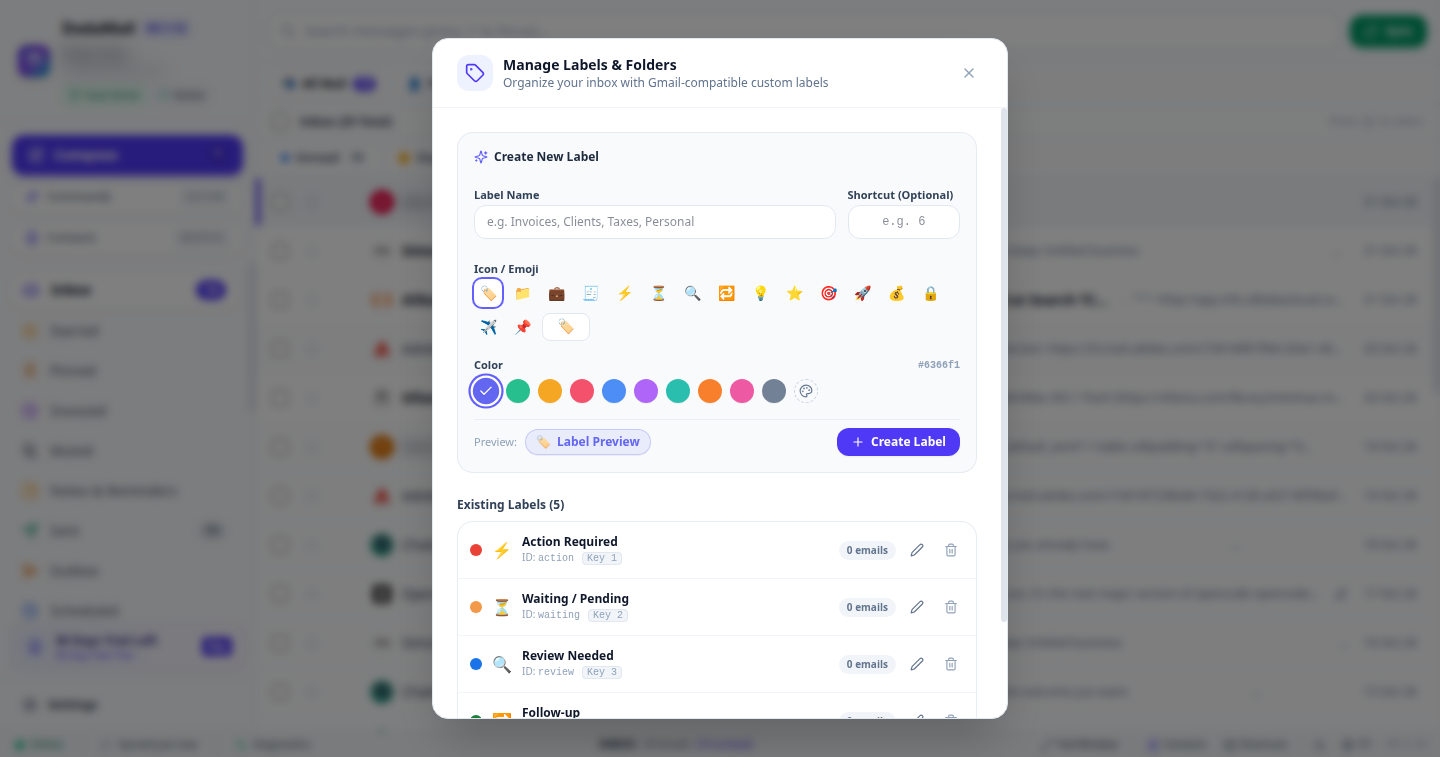
Creating & Managing Labels
- In the sidebar, click the
+icon next to the Labels section. - In the Manage Labels & Folders Modal:
- Enter a Label Name (e.g.,
Taxes,Clients,Invoices). - Assign an optional numeric shortcut (e.g.,
1,2,3). - Pick an emoji or vector icon (e.g., ⚡, ⏳, 🔍, 🔁, 💡).
- Select a distinct accent color from the 10-color palette.
- Enter a Label Name (e.g.,
- Click Create Label. The label appears immediately in your sidebar and triage menus.
1-Click Move to Label (V)
When viewing an email or selecting conversations in the thread list:
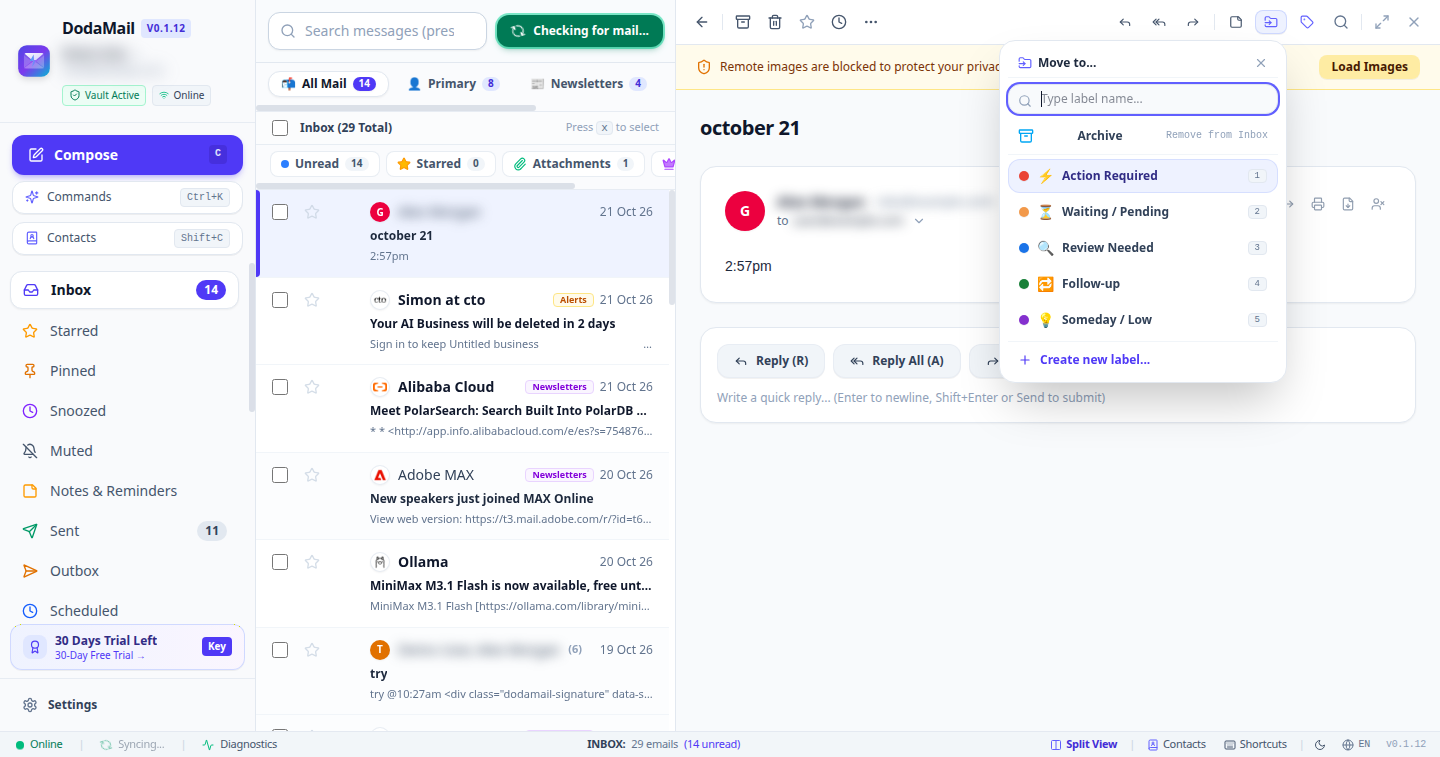
- Press
Von your keyboard (or click the Move to button on the reading pane toolbar). - The Move to… popover opens with your custom labels and standard archive options.
- Select your desired label or press its numeric shortcut (
1-9). - DodaMail automatically:
- Attaches the selected label to the conversation.
- Archives the conversation out of your Inbox.
- Clears clutter from your incoming stream while preserving the message permanently in the label folder.
4. The Thread List Pane (ThreadList.tsx)
The central pane displays email conversations matching your current folder, label, or search query.
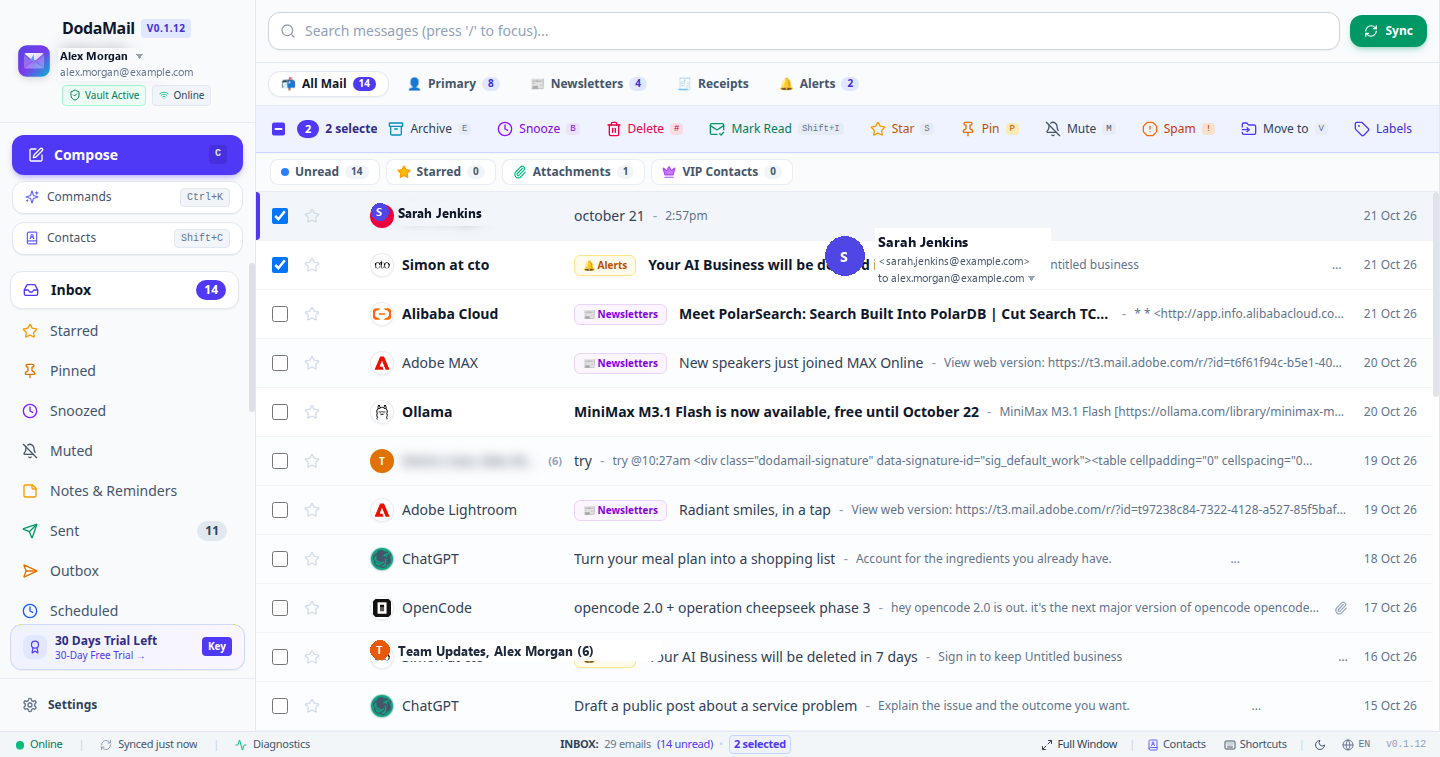
Top Toolbar Controls in Thread List
| Control Name | Control Type | Action & Behavior |
|---|---|---|
| Select All Checkbox | Master Checkbox | Toggles selection of all visible threads in the list. Supports partial indeterminate state. |
| Decluttered Search Bar | Full-Width Input | Expansive input field with fast FTS5 search. Features a circular refresh icon on the right to trigger instant mail sync. |
| Category Tabs | Underlined Segmented Tabs | Switch between All Mail (1), Primary (2), Social (3), Promotions (4), Newsletters (5), Receipts (6), and Alerts (7). |
| Action Quick Filters | Stackable Filter Chips | Toggle cumulative filters for Unread, Starred, Attachments, VIP Contacts, Needs Reply, Today (< 24h), and Large (> 5MB). |
| Clear Filters (✕) | Reset Button | Appears whenever quick filters are active to reset back to the full folder view in a single click. |
| Batch Action: Archive | Icon Button | Moves all selected threads into the Archive folder (E). |
| Batch Action: Delete | Icon Button | Moves all selected threads into the Trash (# or Delete). |
| Batch Action: Mark Read/Unread | Icon Button | Toggles read status for all selected threads (U). |
| Batch Action: Star/Unstar | Icon Button | Toggles star flag for all selected threads (S). |
| Batch Action: Apply Label | Dropdown Button | Opens a checklist of existing labels to batch-tag selected threads (L). |
| Batch Action: Move to Folder | Dropdown Button | Moves selected conversations to any label or folder (V). |
| Batch Action: Snooze | Icon Button | Opens the Snooze picker to postpone selected threads (Z). |
4.1 Smart Inbox Category Tabs
DodaMail separates inbox messages into seven intelligent categories positioned as prominent underlined segmented tabs (Gmail/Linear style) across the top of your inbox:
| Category Tab | Shortcut | Classification Heuristics & Purpose |
|---|---|---|
| 📬 All Mail | 1 | Complete unified incoming stream. Automatically displays inline category badges (💬 Social, 🏷️ Promotions, 🧾 Receipts, 📰 Newsletters, 🔔 Alerts). |
| 👤 Primary | 2 | Direct, personal, and business conversations sent directly to you. Excludes bulk automated mailings. |
| 💬 Social | 3 | Automated notifications and social digests from LinkedIn, Pinterest, Twitter/X, Facebook, Instagram, Reddit, YouTube, TikTok, Discord, and developer communities. |
| 🏷️ Promotions | 4 | Marketing newsletters, special discount offers, coupon codes, and commercial campaigns. |
| 📰 Newsletters | 5 | Curated email digests, Substack blogs, industry roundups, and editorial content. |
| 🧾 Receipts & Billing | 6 | Invoices, purchase confirmations, payment receipts, order tracking, and account statements. |
| 🔔 Alerts & Security | 7 | System alerts, security login notifications, server status updates, and two-factor authentication (2FA) verification codes. |
4.2 Stackable Action Quick Filters
Rendered directly beneath the category tabs as interactive filter chips with live matching counts:
- Unread: Isolate conversations containing unread messages.
- Starred: Show only priority conversations marked with a star.
- Attachments: Show emails containing files, documents, or media.
- VIP Contacts: Show emails originating from senders saved in your local address book VIP list.
- Needs Reply / Follow-up: Automatically identifies incoming emails awaiting your response or follow-up.
- Today (< 24h): Filters messages received within the last 24 hours for rapid daily triage.
- Large Files (> 5MB): Identifies storage-heavy messages containing oversized attachments.
- Multi-Filter Stacking: Filters can be stacked cumulatively (AND logic). For example, select Needs Reply and Large Files simultaneously to quickly triage heavy items needing action.
- One-Click Clear: When one or more filters are active, an inline Clear (✕) button appears to reset all filters instantly.
4.3 Right-Click Context Menu (ThreadContextMenu.tsx)
Right-clicking any conversation row anywhere in the thread list opens a desktop-style context menu for instant one-click triage:
- Open Conversation: Opens the email into the reading pane (
Enter/O). - Reply (
R): Prepares a direct reply to the sender. - Reply All (
A): Prepares a reply to all conversation participants. - Forward (
F): Forwards the email thread with attached files. - Star / Unstar (
S): Toggles the priority star flag. - Mark as Read / Unread (
U): Toggles the unread state. - Move to Label / Folder (
V): Opens the 1-click label filing menu with auto-archive. - Snooze (
B/Z): Temporarily defers the conversation. - Archive (
E): Moves the conversation to Archive. - Delete (
#/Delete): Moves the conversation to Trash.
5. The Thread Reading Pane (ThreadView.tsx)
The right-hand pane renders the complete conversation history with full MIME formatting, inline security audits, and response tools.
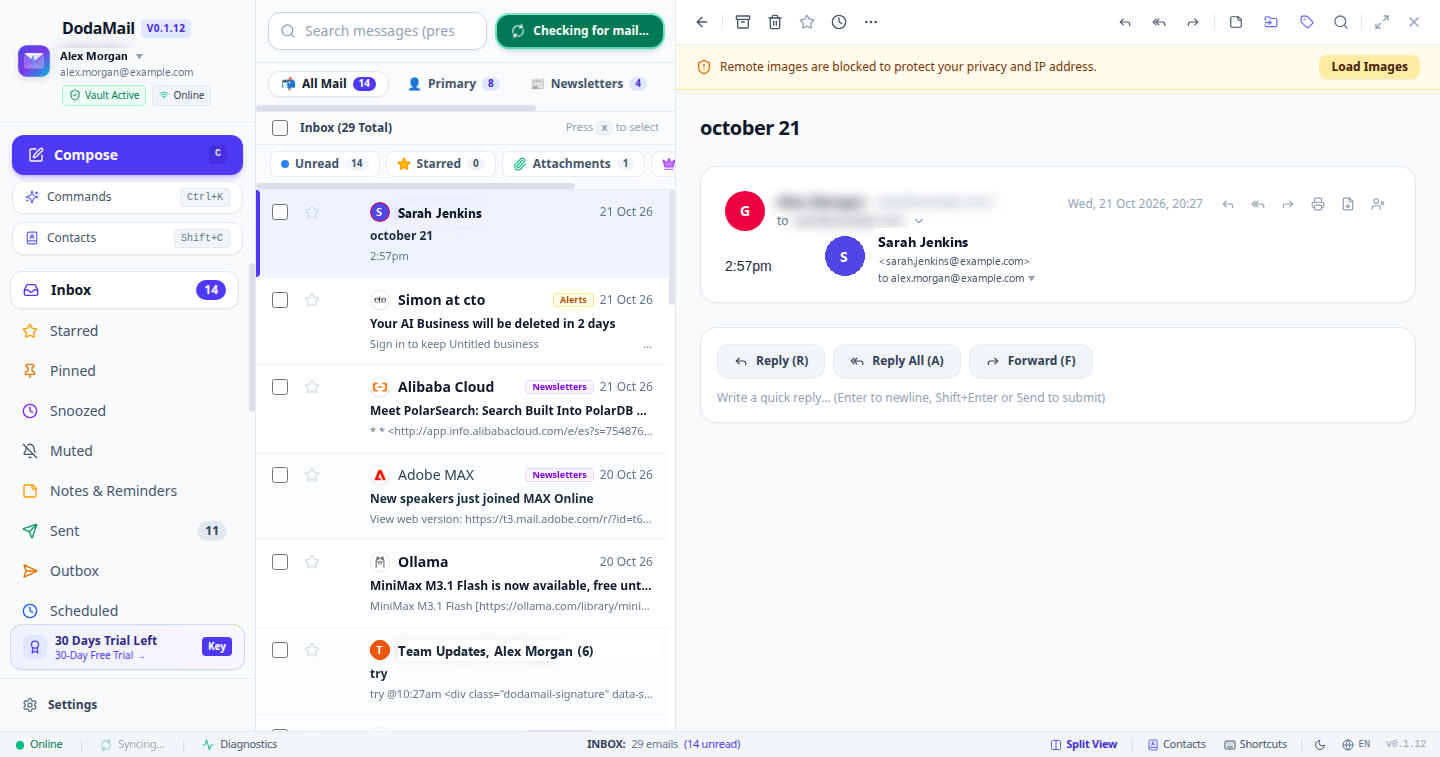
Reading Pane Action Toolbar
The top bar of the reading pane provides actions for the active conversation:
| Control | Action Description | Keyboard Shortcut |
|---|---|---|
| “Reply” | Opens the composer pre-filled with the original sender’s address and quoted text. | R |
| “Reply All” | Opens the composer including all original To and Cc recipients. | A |
| “Forward” | Opens the composer ready to enter new destination recipients with all attachments attached. | F |
| “Notes” | Opens the private thread notes sidebar to attach personal reminders or due dates. | N / Alt+N |
| “Contact” | Opens the Contact Intelligence panel showing relationship vitals, conversation history, and shared files. | Alt+I |
| “Move to” | Opens the 1-click label popover to tag and archive from Inbox. | V |
| “Labels” | Manages assigned label tags without archiving. | L |
| “Star / Unstar” | Toggles follow-up priority star on the active thread. | S |
| “Pin / Unpin” | Pins thread to the top of the conversation list. | Shift+P |
| “Print” | Launches the dedicated Print Thread Dialog. | P |
| “Snooze” | Defers email until a future date or time. | Z |
| “Mute” | Suppresses notifications for future replies on this thread. | M |
| “Report Spam” | Moves to Spam and trains local filters. | ! |
| “Delete” | Moves conversation to Trash. | # |
5.1 Contact Intelligence Panel (ContactIntelligencePanel.tsx)
When viewing an email, clicking the 👤 Contact button on the reading pane toolbar (or pressing Alt+I) opens the docked Contact Intelligence Sidebar. Operating 100% locally and privately on your machine without external cloud dependencies, this panel provides:
- Contact Profile & Vitals: Full name, contact avatar, clean email address (with 1-click clipboard copy), organization/company domain (
acme.com), phone number, and a 1-click VIP Star Toggle (⭐). - Relationship Metrics: Total conversation count, relative timestamp of your last interaction (e.g., Just now, Yesterday, 3 days ago), and the date you first connected.
- Quick Actions: Instant buttons to compose a new email to this contact, search all past correspondence (
from:email), or open their entry in the Address Book. - Conversation History (Timeline): Chronological stream of all previous threads exchanged with this contact. Clicking any conversation opens it directly in the reading pane.
- Shared Attachments Hub: A unified gallery of all PDFs, spreadsheets, documents, and media exchanged between you and this contact across all messages, with 1-click file download.
- CRM Notes & Tasks: Real-time visibility into local private notes and follow-up deadlines attached to threads from this contact.
6. SQLite FTS5 Full-Text Search Engine (ThreadSearchBar.tsx)
Located at the top of the interface, the search bar queries DodaMail’s local SQLite FTS5 (Full-Text Search 5) index. Queries execute locally in under 10 milliseconds without querying remote servers.
Supported Search Syntax & Operators
| Search Operator | Example Query | What It Finds |
|---|---|---|
from: | from:[email protected] | Messages sent by a specific email or name. |
to: | to:[email protected] | Messages addressed to a specific recipient. |
subject: | subject:"Q3 Report" | Matches exact words or phrases in the subject line. |
has:attachment | has:attachment invoice | Finds messages containing attachments and mentioning “invoice”. |
is:unread | is:unread from:boss | Filters to unread messages from a specific contact. |
is:starred | is:starred | Filters to all starred messages. |
after: | after:2026-01-01 | Messages received after January 1, 2026. |
before: | before:2026-10-01 | Messages received before October 1, 2026. |
label: | label:Urgent | Filters to messages tagged with the “Urgent” label. |
folder: | folder:Sent | Restricts search to a specific folder. |
OR | contract OR agreement | Matches messages containing either word. |
NOT / - | project -archived | Matches “project” but excludes messages with “archived”. |