Troubleshooting & Error Reference
Troubleshooting & Error Messages Reference
When you encounter sending delays, synchronization timeouts, or configuration errors, DodaMail includes an automated Live Diagnostics & Troubleshooting Suite that pinpoints the root cause within seconds.
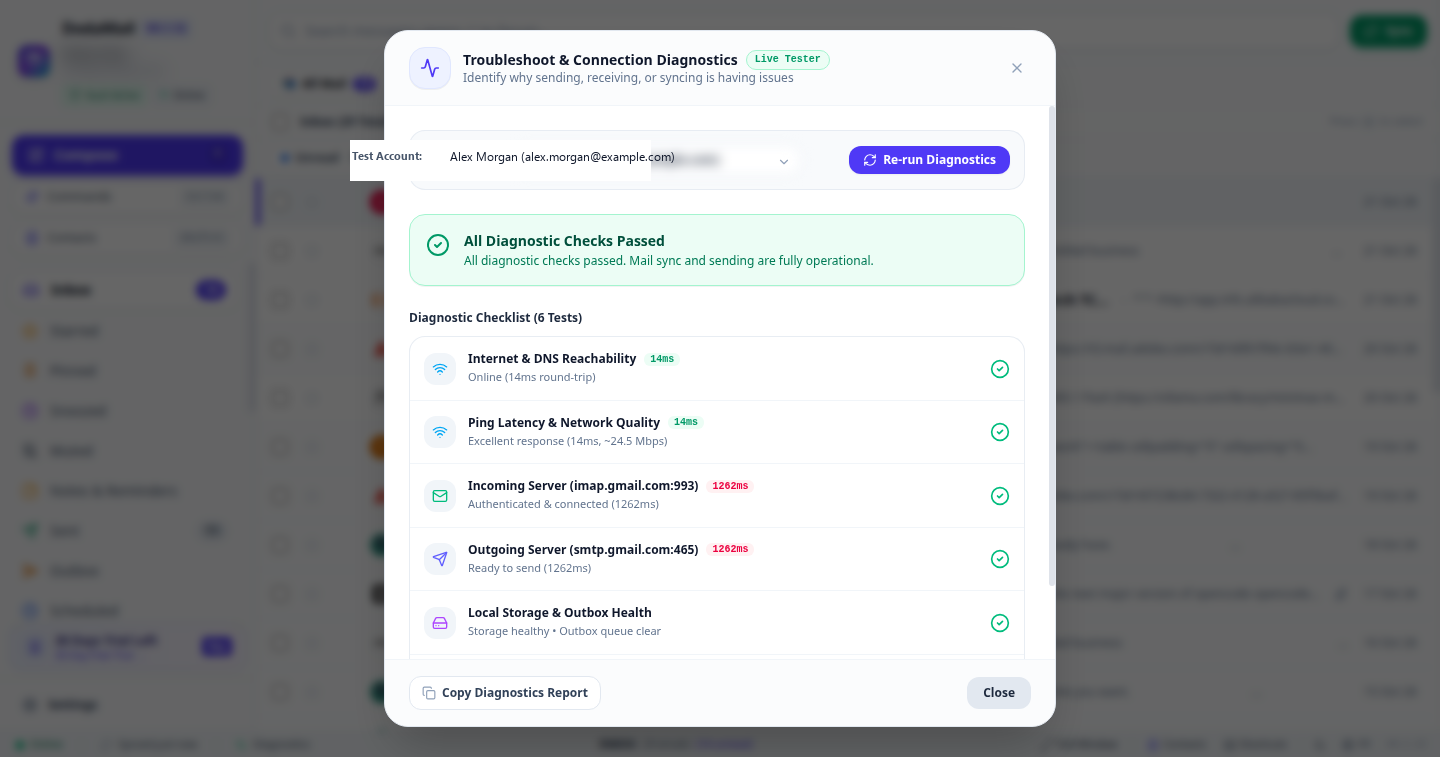
1. Live Connection Diagnostics & Troubleshooter (TroubleshootModal.tsx)
Whenever you suspect mail is not sending or receiving, click the 🩺 Diagnostics button on the Desktop Bottom Status Bar (or open Settings -> Troubleshoot).
DodaMail instantly runs a comprehensive 6-Test Automated Suite:
| Step # | Test Name | What Is Evaluated | Pass Criteria | On-Screen Solution if Failed |
|---|---|---|---|---|
| 1 | Internet & DNS Reachability | Resolves public endpoints (Cloudflare, Google, Apple) and confirms local WAN routing. | Round-trip reachability established (<500ms). | Check Wi-Fi, Ethernet, or proxy settings. |
| 2 | Ping Latency & Network Quality | Measures socket latency and estimated data throughput. | Latency under 1,200ms with healthy bandwidth. | Identifies slow or lagging networks that may cause IMAP timeouts. |
| 3 | Incoming Server (IMAP Check) | Negotiates an authenticated TLS socket with your incoming host (port 993/143). | Server accepts credentials and enters IMAP IDLE state. | Click “Update Password” to enter an App Password for Gmail/Outlook, or verify host spelling. |
| 4 | Outgoing Server (SMTP Check) | Connects to your outgoing relay (port 465/587) and verifies transmission handshake. | Server accepts AUTH and reports ready to transmit. | Click “Review Account Settings” to verify SMTP authentication or alternate ports. |
| 5 | Local Storage & Outbox Health | Verifies SQLite database read/write integrity and scans for stuck outgoing messages. | Zero database corruption and 0 stuck messages in retry loop. | Click “Open Outbox” to inspect, edit, or retry pending emails. |
| 6 | License & Software Registration | Verifies 30-day evaluation status, offline grace period, or permanent license key. | Active evaluation or valid registered license. | Click “Activate License Key” to open the registration dialog and unlock software. |
Diagnostic Actions on Screen
- Copy Diagnostics Report: Generates a sanitized technical report with timestamps, socket latencies, and error codes ready to paste to
[email protected]. - Re-run Diagnostics: Clears cache and immediately re-tests all 6 socket connections.
- 1-Click Remediation Buttons: When a test fails or warns, DodaMail surfaces contextual buttons (e.g. Update Account Password, Activate License Key, Verify Network Settings) directly on the checklist card.
2. Common IMAP & Connection Error Codes
ERR_IMAP_CONNECTION_FAILED
Dialog Title: Connection to IMAP Server Failed
Message: “Unable to establish connection to <host> on port <port>. Connection timed out after 15000ms.”
- Root Cause:
- The mail server hostname is incorrect or unresolvable by DNS.
- The network firewall or ISP blocks outbound connections on port
993or143. - The local network is offline.
- Step-by-Step Solution:
- Click 🩺 Diagnostics on the bottom status bar.
- If Step 1 (Internet) fails, reconnect your Wi-Fi or router.
- If Step 3 (IMAP) fails, go to Settings -> Accounts -> Edit Account.
- Verify the Incoming Server (IMAP Host) spelling (e.g.,
imap.gmail.com,outlook.office365.com). - Verify the Port: If using
SSL/TLS, set to993. If usingSTARTTLS, set to143.
ERR_IMAP_AUTH_FAILED
Dialog Title: Authentication Failed (IMAP)
Message: “The server rejected your login credentials. Verify your username and password.”
- Root Cause:
- Incorrect password or typo in the email address.
- The email provider enforces 2-Factor Authentication (2FA) and requires an App-Specific Password (standard for Gmail, Yahoo, Apple iCloud, and Microsoft 365).
- IMAP access is disabled in the provider’s webmail settings.
- Step-by-Step Solution:
- For Gmail: Ensure IMAP is enabled in Gmail settings. Generate a 16-character App Password at
https://myaccount.google.com/apppasswordsand paste it into DodaMail. - For Outlook / O365: Generate an App Password at
https://account.live.com/proofs/AppPassword. - For Custom Domains: Ensure the Username field contains your full email address (
[email protected]), not just the prefix.
- For Gmail: Ensure IMAP is enabled in Gmail settings. Generate a 16-character App Password at
3. Common SMTP & Outgoing Transmission Errors
ERR_SMTP_AUTH_FAILED
Dialog Title: Outgoing Transmission Failed (535 5.7.8)
Message: “Authentication credentials invalid for SMTP relay.”
- Root Cause: Your outgoing SMTP server rejected your credentials or requires separate authentication settings.
- Step-by-Step Solution:
- In Settings -> Accounts -> Edit Account, verify that outgoing SMTP authentication is checked.
- Re-enter your password and click Test Connection.
ERR_LICENSE_EXPIRED
Dialog Title: Evaluation Period Expired
Message: “Your 30-day free trial has concluded. Enter a valid product key to resume sending and receiving.”
- Root Cause: The 30-day trial counter has reached 0 without a registered license key.
- Step-by-Step Solution:
- Click the Key icon in the sidebar or bottom status bar.
- In the Software Registration Dialog, enter your License Key (e.g.
DODA-PRO-XXXX-XXXX-XXXX). - Click Activate License. Your installation is immediately unlocked for permanent 2-seat device use.\n