Creating & Managing Backup Profiles
Backup profiles are the core organizational units in DodaBackup. Each profile defines what to back up, what to ignore, how data reconciles between endpoints, and where copies should be stored.
To begin, click the prominent + New Profile button in the top command bar or press Ctrl + N (see Keyboard Shortcuts). This launches the guided 6-stage configuration wizard.
The 6-Stage Profile Creation Wizard
    graph LR
    S1["1. Source Folder"] --> S2["2. Exclusions"]
    S2 --> S3["3. Sync Mode"]
    S3 --> S4["4. Destination"]
    S4 --> S5["5. Advanced Engine"]
    S5 --> S6["6. Review & Save"]
Stage 1: Profile Name & Source Selection
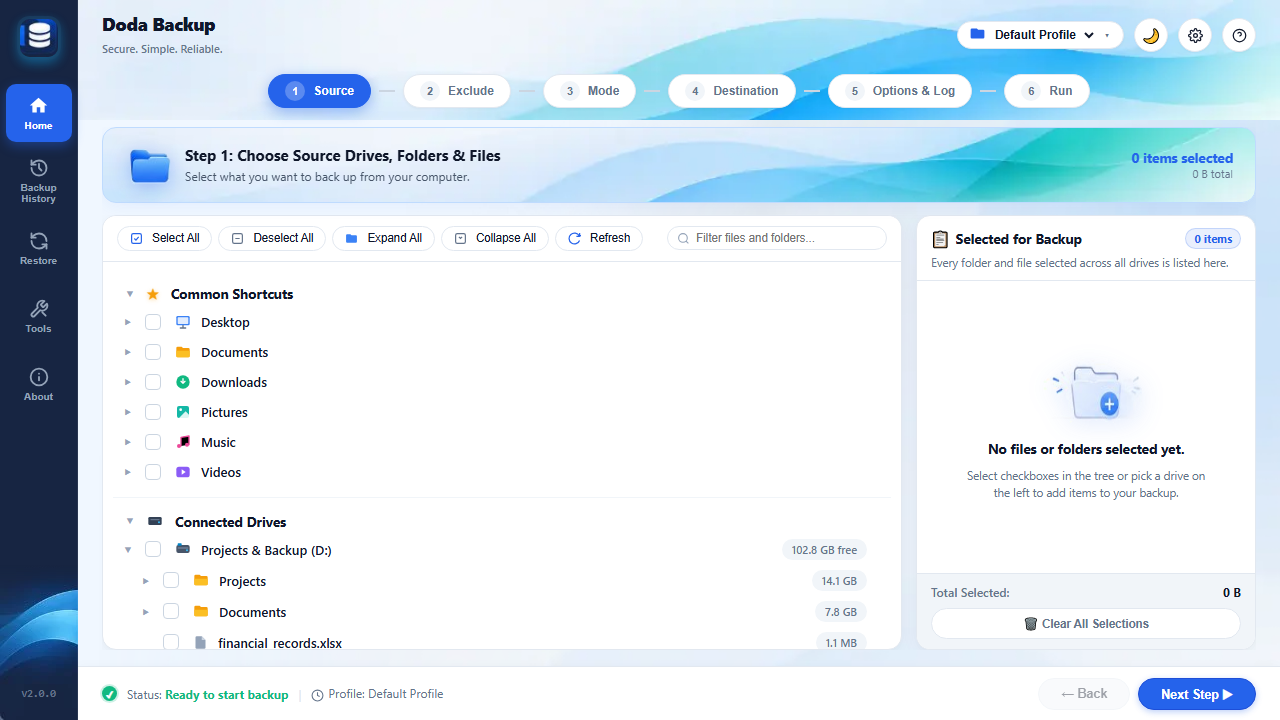
- Profile Name: Give your backup profile a recognizable name (e.g.,
Work Documents,Source Code Repositories,Family Photos & Media). - Source Directory: Click Browse Folder or paste a local directory path (e.g.,
D:\Work,C:\Users\username\Projects). - DodaBackup performs an immediate non-destructive scan of the selected source to verify read permissions, accessible subdirectories, and estimated file counts.
Stage 2: File & Folder Exclusion Filters
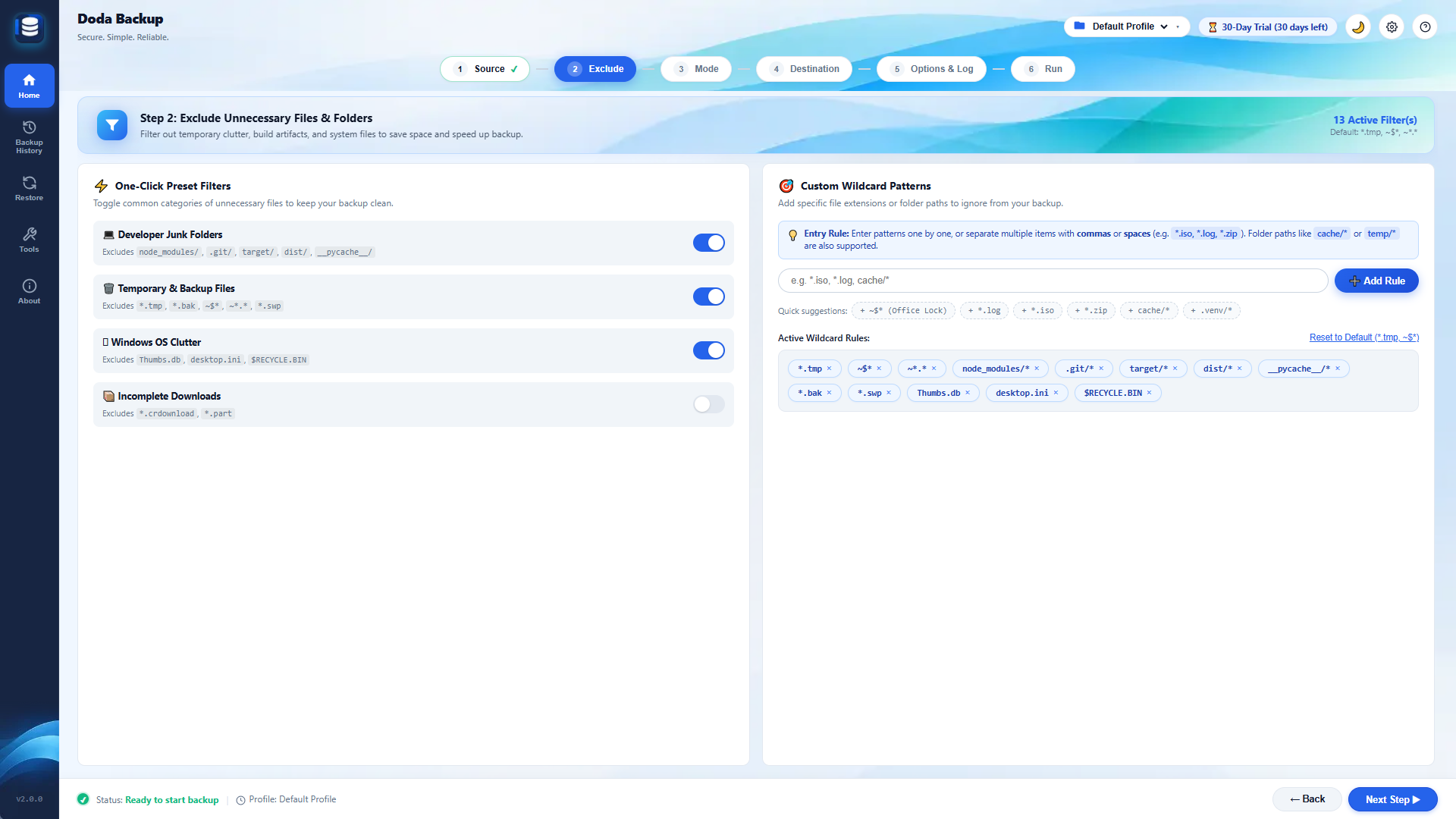
Avoid wasting backup storage on temporary cache files, build outputs, and system trash:
- Default Presets: Pre-configured one-click toggles for common exclusions:
- System artifacts (
Thumbs.db,desktop.ini,$RECYCLE.BIN,.DS_Store) - Developer caches (
node_modules/,.git/,target/,venv/,__pycache__/) - Temporary files (
*.tmp,*.bak,*.swp)
- System artifacts (
- Custom Patterns: Add custom wildcard patterns or folder paths, separated by commas or newlines (e.g.,
*.iso, *.vmdk, logs/). - File Size Caps: Optionally ignore files exceeding a specific threshold (e.g., skip individual files > 10 GB).
Stage 3: Selecting Your Synchronization Mode
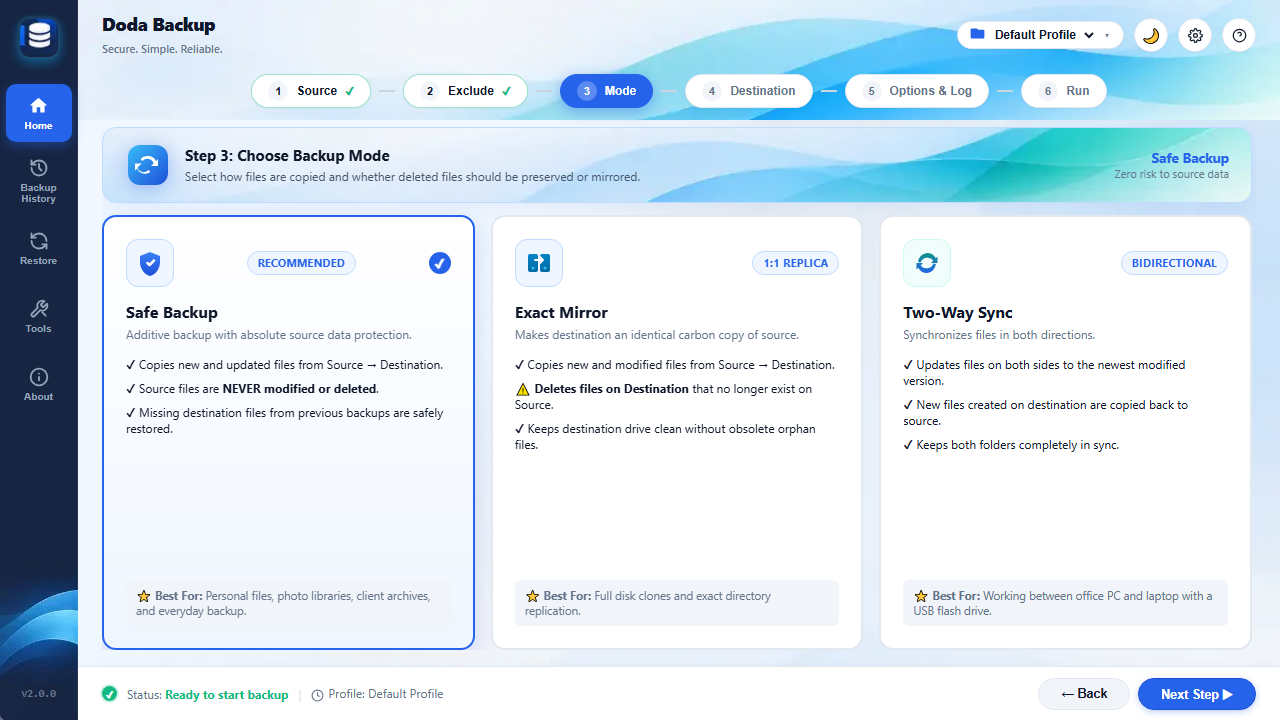
DodaBackup provides four specialized synchronization architectures. For full technical details and sequence diagrams of each engine, see our dedicated Synchronization & Backup Engines Guide:
- Two-Way Synchronization (Bi-directional Sync):
- Keeps both Source and Destination completely identical.
- Files added, edited, or deleted in either directory propagate to the other.
- Recommended for USB drives shared between office and home computers.
- Mirror Backup (One-Way Exact Clone):
- Forces the Destination to become a 1:1 identical mirror of the Source.
- Obsolete files deleted from the Source are safely removed from the Destination.
- Recommended for clean project snapshots and external SSD archives.
- Incremental Backup (Delta Accumulation):
- Copies new and modified files from Source to Destination.
- Files deleted from the Source are preserved in the Destination, ensuring historical versions are never lost.
- Recommended for long-term document retention and compliance backups.
- Continuous Watcher (Real-Time Sentinel):
- Monitors the Source directory in real time using native Windows filesystem kernel events (
ReadDirectoryChangesW). - Instantly pushes changes to the Destination the second you save a file.
- Recommended for active writing, live coding, and mission-critical databases.
- Monitors the Source directory in real time using native Windows filesystem kernel events (
Stage 4: Target Destination
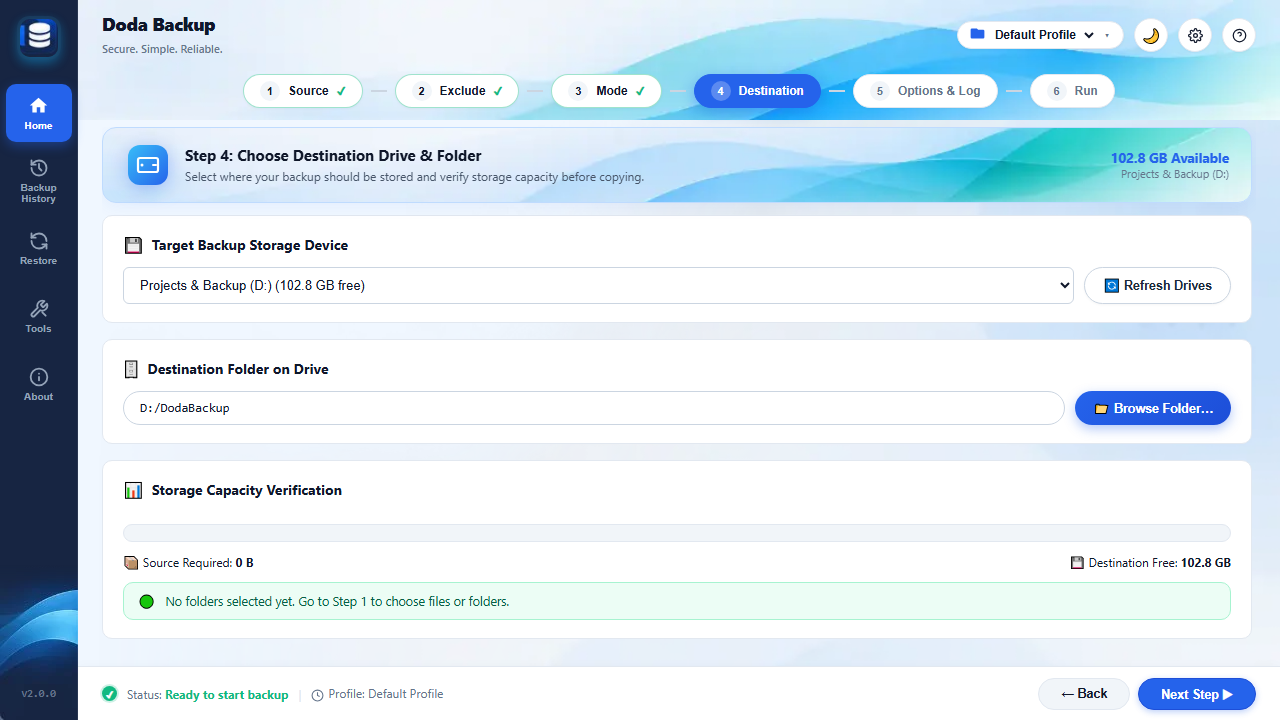
- Destination Directory: Click Browse Folder or enter the target path:
- External NVMe / USB 3.2 SSDs (e.g.,
E:\Backup_Drive) - Secondary internal HDDs or partitions (e.g.,
E:\Archives\Projects) - Mapped Windows Network Drives / Samba NAS shares (e.g.,
Z:\Storage\Backupsor\\192.168.1.100\SharedBackups)
- External NVMe / USB 3.2 SSDs (e.g.,
- DodaBackup verifies that the target path is writable, checks available free disk space against the source directory size, and confirms NTFS/FAT/exFAT compatibility.
Stage 5: Advanced Engine Settings
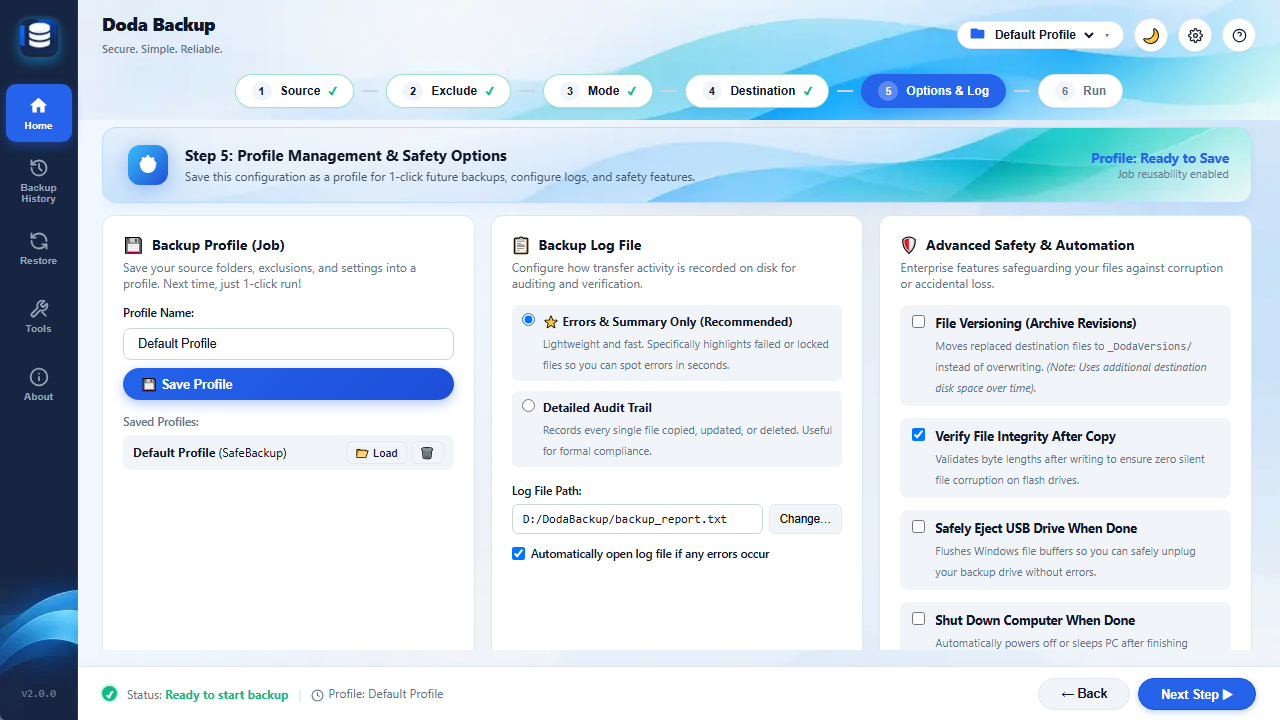
Fine-tune the native Rust engine for performance and safety:
- Verification Strategy:
- Timestamp & Size Check (Ultra Fast): Compares Last-Modified UTC timestamps and byte sizes. Scans 100,000 files in under 2 seconds.
- Full Cryptographic Checksum (Maximum Integrity): Computes SHA-256 hashes of source and destination files to identify bitrot or silent corruption.
- Conflict Resolution:
- Newer File Wins: The file with the more recent timestamp takes precedence.
- Source Always Wins: The source version always overwrites the destination.
- Prompt User: Halts execution and displays a visual diff for manual user approval.
- Performance & Threading:
- Configure parallel worker threads (defaults to automatic multi-core detection).
- Bandwidth throttling option to prevent saturation of slower network or USB 2.0 buses. Global preferences can be managed under Application Settings.
Stage 6: Summary Review, Validation & Run
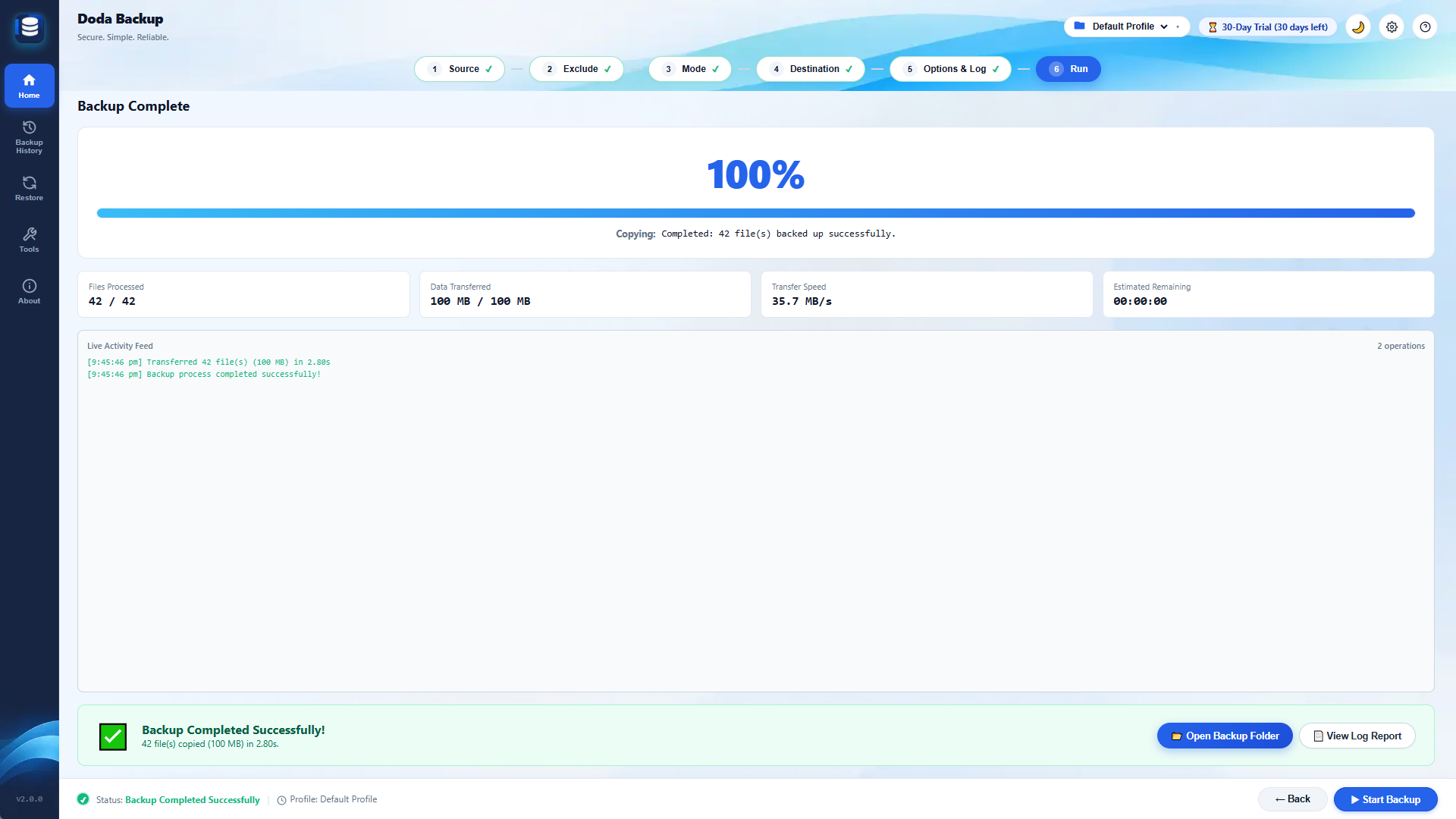
- Review your complete configuration summary: profile title, source and target paths, active sync mode, filter counts, and collision rules.
- Click Save Profile to add it to your dashboard.
- Click Save & Run Now to immediately initiate the initial synchronization baseline.
Managing Configured Profiles
Once saved, all profiles are managed directly from the primary dashboard:
- Run Single Profile (
▶): Initiates synchronization for that specific profile in the background with live progress indicators. - Edit Profile (
✏️): Re-opens the wizard pre-populated with all existing parameters. You can modify filters, switch modes, or alter destination drives anytime. - Restore Data (
↩️): Opens the automated data recovery modal. For complete recovery instructions, see our Restore & Data Recovery Guide. - Delete Profile (
🗑️): Removes the profile from DodaBackup’s registry. Note: Deleting a profile never removes any actual files from your source or destination drives. - Audit Reports: Click on any profile card to view historical execution logs, total elapsed seconds, transferred bytes, and skipped files. See Execution Audit Reports.