Settings, Shortcuts & Diagnostics
Fine-tune DodaBackup’s operational behavior, explore productivity shortcuts, and inspect comprehensive audit logs for complete visibility over your data.
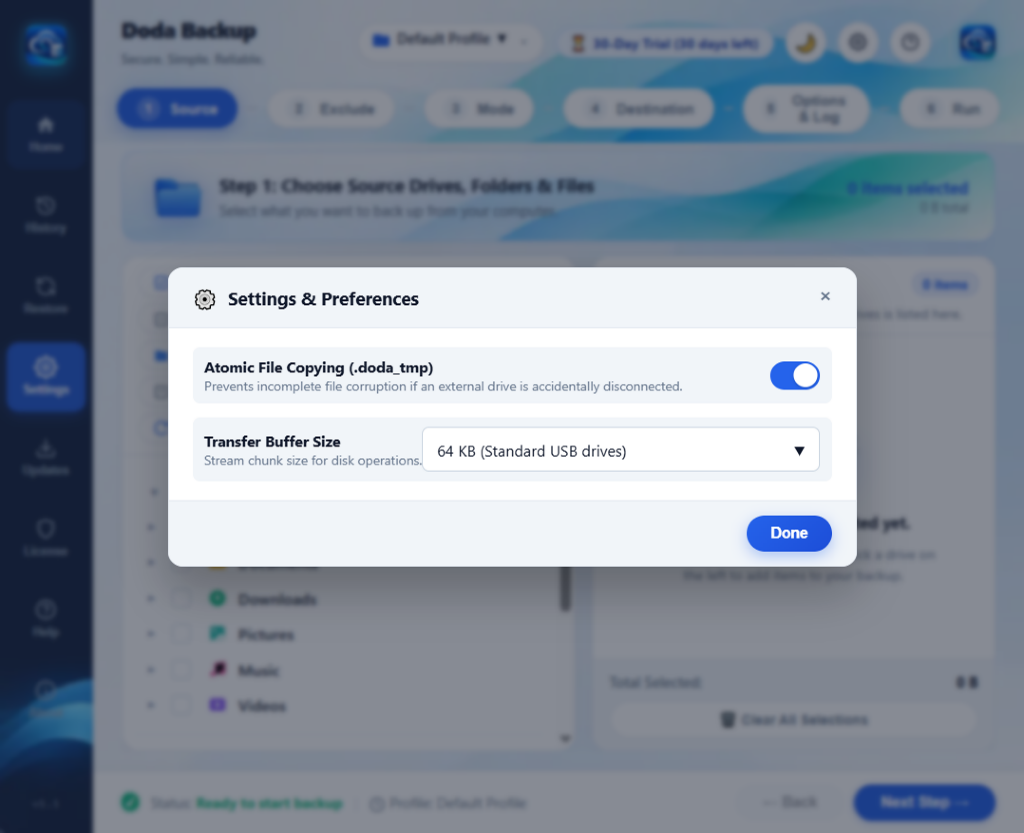
Application Preferences Reference
Access the Settings dialog by clicking Settings on the left navigation rail or pressing Ctrl + ,.
1. General & Startup Behavior
- Start with Windows: Configures DodaBackup to launch automatically upon user login, ensuring background Continuous Watcher sentinels resume without manual intervention.
- Start Minimized to System Tray: Runs silently in the background notification area without opening a primary window on startup.
- Close to Tray: Clicking the window close button (
✕) minimizes DodaBackup to the system tray rather than terminating active background backup tasks.
2. Software Updates
- Automatically Check for Updates (Recommended): Queries
download.dodatech.com/dodabackup/latest.jsonevery 4 hours. See our Cloudflare R2 & Automated Updates Guide. - Automatically Download in Background: When a newer release is detected, silently streams the installer so it is ready for instant installation.
3. Notifications & Feedback
- Completion Sound: Plays an unobtrusive notification chime when an intensive backup profile completes.
- Desktop Toast Notifications: Displays Windows Action Center banners reporting synchronization outcomes, transferred data volumes, or warning alerts.
Keyboard Shortcuts Reference
DodaBackup is engineered for rapid keyboard-first control:
| Keystroke | Function | Context / Destination |
|---|---|---|
F1 | Launch Documentation / Help | Global — Opens DodaBackup Documentation |
Esc | Close Active Modal / Dialog | Any open dialog (Settings, License, Wizard, Logs) |
Ctrl + N | Create New Backup Profile | Opens the 6-Stage Profile Wizard |
Ctrl + R | Run All Active Profiles | Executes all configured Sync & Backup Engines |
Ctrl + , | Open Application Settings | Global — Opens this preferences modal |
Ctrl + L | Open License & Registration | Global — Opens Licensing & Seat Management |
Ctrl + U | Check for Software Updates | Global — Queries Cloudflare R2 Storage |
Enter | Confirm / Proceed to Next Step | Profile Wizard / Dialogs |
Detailed Execution Audit Reports
Every time a synchronization profile runs—whether triggered manually, on schedule, or via the real-time file watcher—DodaBackup compiles a forensic audit report.
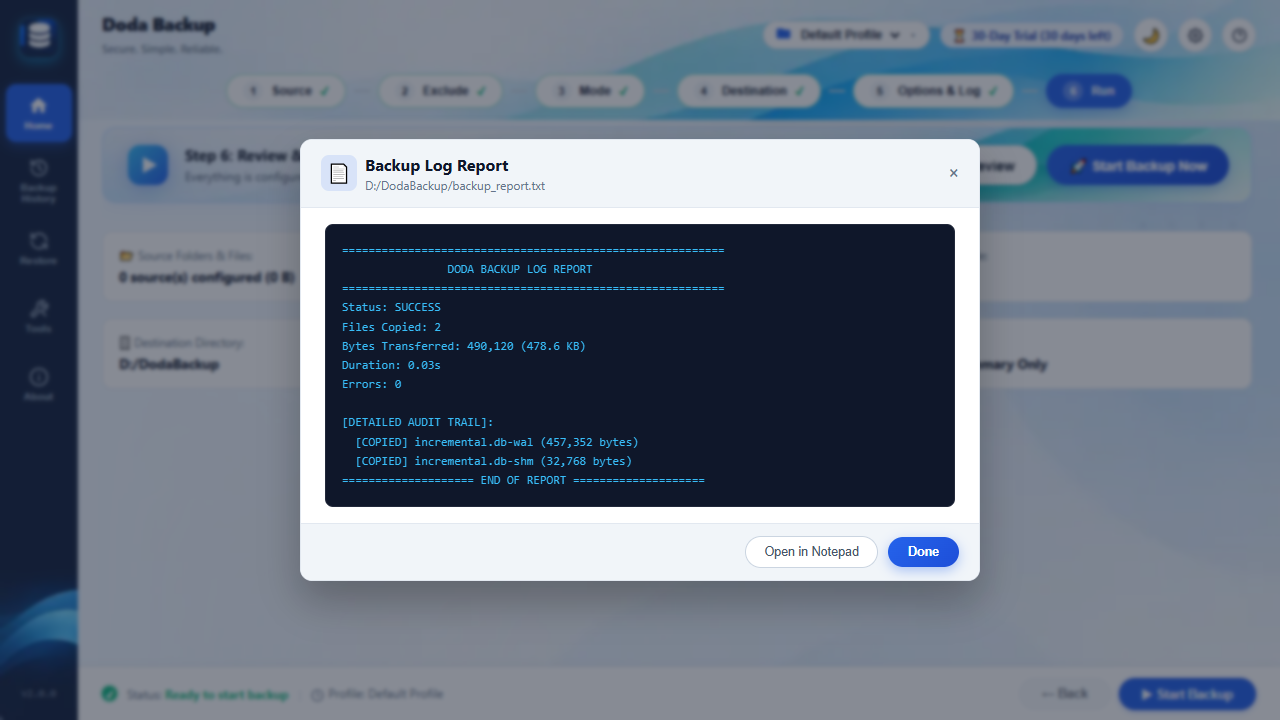
Metric Fields Reported
- Execution Duration: High-precision elapsed time in milliseconds.
- Total Scanned Items: Number of directory nodes and files evaluated.
- Copied / Updated: Number of files transferred and total megabytes written.
- Orphan Cleanups: Number of obsolete destination files safely deleted (see Mirror Backup Engine).
- Skipped Items: Files bypassed due to matching exclusion rules or identical timestamps/hashes.
- Errors / Locked Files: Immediate line-by-line reporting of files blocked by exclusive OS locks (e.g., active Outlook PST files or SQL database locks).
- Restoration Verification: After executing an emergency recovery, an audit log verifies data integrity against the source (see Restore & Data Recovery).
Common Troubleshooting & Solutions
1. File Locked by Another Process (Win32 Error 32)
- Cause: Another running application (e.g., Microsoft Word, a virtual machine, or a database server) has locked the file exclusively.
- Solution: Close the application holding the lock. For live system files, consider configuring DodaBackup’s scheduler to run during maintenance hours.
2. Windows 260-Character Path Length Limit
- Cause: Deeply nested directory structures exceeding MAX_PATH (260 characters).
- Solution: DodaBackup natively uses extended-length Windows Win32 path prefixes (
\\?\UNC\and\\?\C:\), completely bypassing MAX_PATH limitations. If third-party applications fail to read your backups, enable Win32 Long Paths in Windows Group Policy:Computer Configuration -> Administrative Templates -> System -> Filesystem -> Enable Win32 long paths.
3. Network Share Authentication Drop
- Cause: Samba or NAS shares timing out after prolonged idle periods.
- Solution: Map the network drive persistently with reconnect-on-login enabled (
net use Z: \\nas\backup /persistent:yes).