Getting Started with DodaBackup
Welcome to DodaBackup! This guide walks you through system requirements, installation using the official setup installer, initial configuration, and mastering the desktop interface.
System Requirements
DodaBackup is compiled as a high-performance native 64-bit binary targeting modern Windows installations. Because it utilizes Tauri 2.x and native Windows Win32 APIs instead of Chromium/Electron, runtime overhead is microscopic.
| Component | Minimum Specification | Recommended Specification |
|---|---|---|
| Operating System | Windows 10 (64-bit, Version 1903 or later) Windows 11 (64-bit, All builds) | Windows 11 (64-bit, Latest release) |
| Processor | 64-bit Intel Core or AMD CPU (1.6 GHz+) | Multi-core 64-bit CPU (4+ cores recommended for parallel scanning) |
| Memory (RAM) | 512 MB RAM (Application typically uses < 30 MB) | 2 GB+ RAM |
| Disk Space | 20 MB for application installation | Sufficient local or external storage for backup destinations |
| Display | 1024 × 700 resolution | 1920 × 1080 (Full HD) with High-DPI scaling support |
| Network | Fully offline capable; internet required only for checking updates & cloud licensing | Standard internet connection |
Installation Walkthrough
Download the Official Installer: Download the latest verified release package:
👉 Download DodaBackup v1.1.2 for Windows (DodaBackup-Setup-v1.1.2.exe) (Direct URL: https://download.dodatech.com/dodabackup/releases/windows/DodaBackup-Setup-v1.1.2.exe)
Run the NSIS Setup Wizard: Double-click
DodaBackup-Setup-v1.1.2.exe. The Nullsoft Scriptable Install System (NSIS) wizard will launch:- Select installation scope: per-user or all users.
- Choose destination folder (defaults to
%LOCALAPPDATA%\Programs\DodaBackuporC:\Program Files\DodaBackup). - The installer automatically registers start menu shortcuts, uninstaller registry entries, and high-DPI desktop icons.
Launch DodaBackup: Click Finish to immediately open DodaBackup and begin your 30-Day Evaluation.
Interface Layout & Navigation
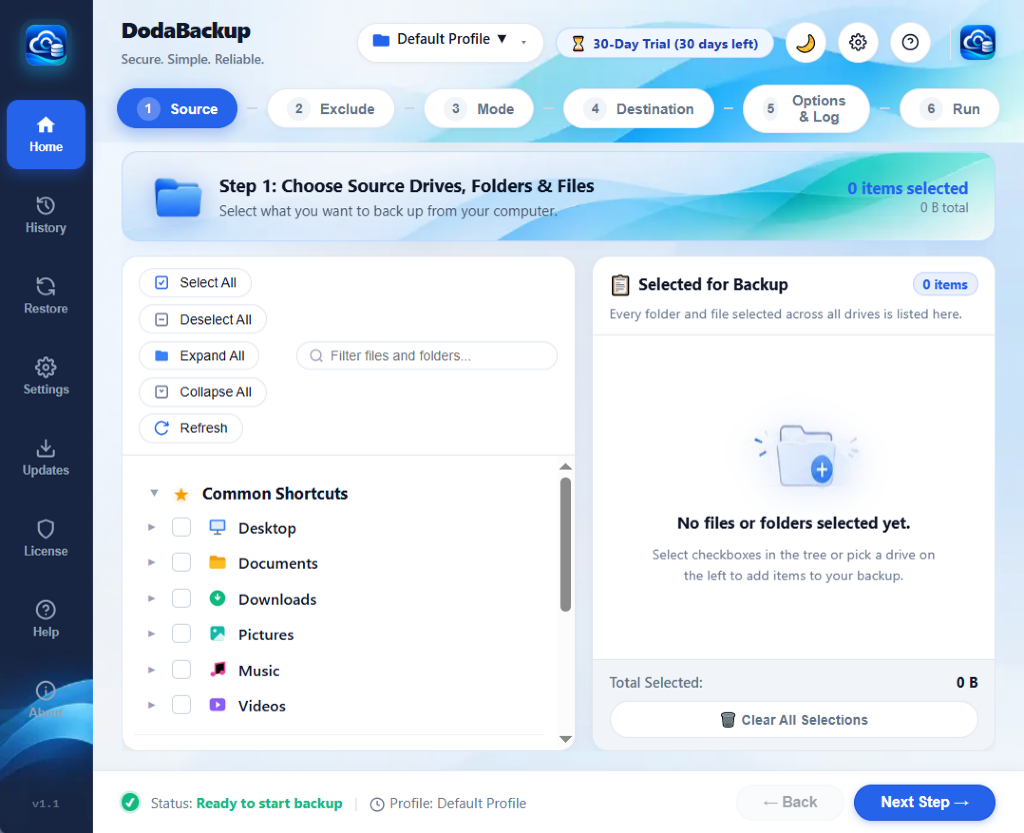
The DodaBackup workspace is divided into three functional zones designed for distraction-free operations:
    graph LR
    subgraph UI ["DodaBackup Desktop Layout"]
        NAV["Left Navigation Rail<br/>• Brand Logo<br/>• Profiles (Home)<br/>• Settings<br/>• Updates<br/>• License<br/>• Help (docs)<br/>• About"]
        TOP["Top Command Bar<br/>• Search & Filter<br/>• Active Count<br/>• + New Profile CTA<br/>• Version Badge"]
        MAIN["Main Workspace<br/>• Profile Grid Cards<br/>• Sync Status Indicators<br/>• 1-Click Run Triggers<br/>• Edit / Delete Modals"]
        STATUS["Bottom Status Bar<br/>• Press F1 for Help<br/>• Engine Readiness<br/>• DodaTech.com Link"]
    end
    NAV --> MAIN
    TOP --> MAIN
    MAIN --> STATUS
1. Left Navigation Rail
The sleek vertical rail provides one-click access to all top-level application features:
- Logo & Version Badge: Displays the current release version (
v1.1.2). Clicking the logo resets filters and returns you to the active profile board. - Sync Profiles (Home): The primary view listing all configured backup and synchronization profiles. See Creating & Managing Backup Profiles.
- Settings: Opens the application preferences modal (startup options, auto-update toggle, notifications, and logging verbosity). See Settings & Shortcuts.
- Updates: Launches the live update inspector to verify the latest release on Cloudflare R2 and download packages. See Cloudflare R2 Updates.
- License: Displays your 30-day evaluation status, authorized device seats, offline checksum verification, and seat transfer controls. See Licensing & Seat Management.
- Help: Direct one-click documentation launcher pointing to our online knowledge base.
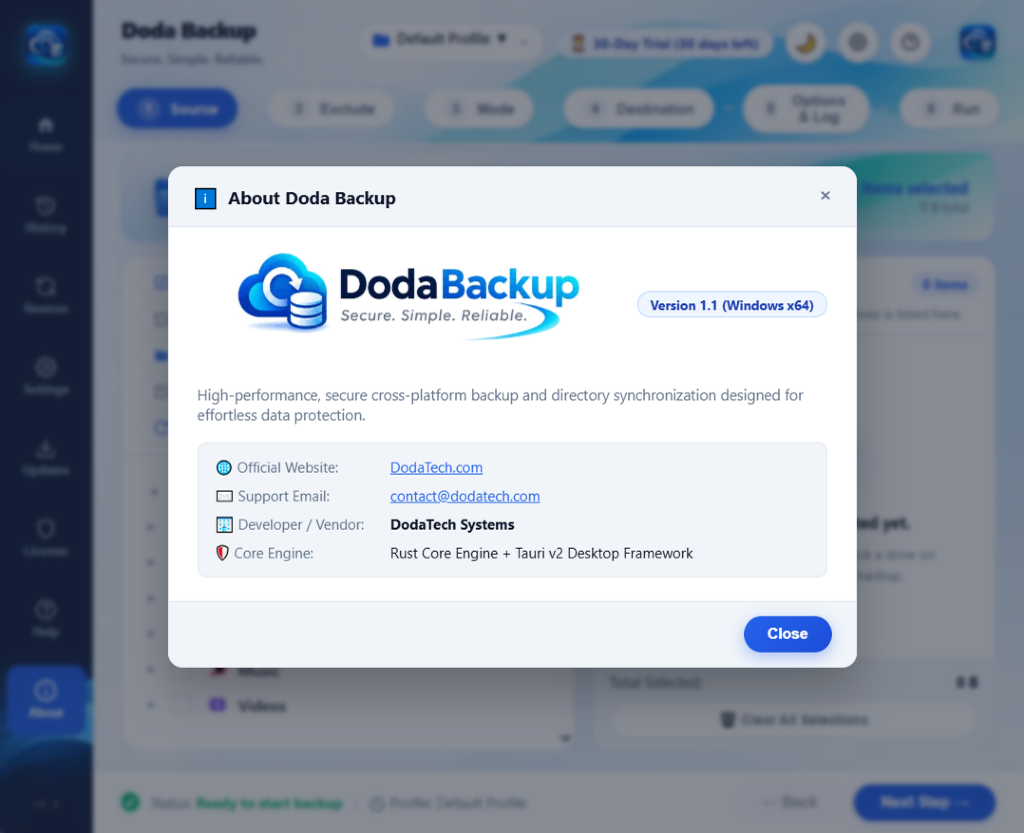
- About: Displays system information, application version, build architecture, and contact links.
2. Top Command Bar
- Search & Filter Input: Instantly filter dozens of backup profiles by name, source folder, or destination path with zero delay.
- Profile Counter: Highlights total profiles configured and how many are currently active.
+ New ProfileButton: Primary call-to-action that initiates the 6-Stage Profile Wizard.
3. Profile Board
Each backup profile is represented as a structured card displaying:
- Profile Name & Sync Mode Pill: Highlighting whether the profile is running Two-Way Sync, Mirror, Incremental, or Continuous Watcher.
- Source & Destination Badges: Showing the exact origin directory and target folder (external drive, local partition, or NAS network share).
- Last Sync Timestamp & Metrics: Displays when the profile was last synchronized, total processed files, and transferred data volume.
- Action Buttons: Immediate Run Now (
▶), Edit Profile (✏️), Restore (↩️), and Delete Profile (🗑️). Learn how restore works in our Restore & Recovery Guide.
4. Bottom Status Bar
Located at the very bottom of the screen, the persistent status bar provides ambient engine awareness:
- Left Hint:
Press F1 for Help— Instant reminder of the global keyboard shortcut (see Keyboard Shortcuts). - Center Engine Vitals: Displays live engine readiness, scanning states, or background watcher activity.
- Right Corporate Link: Direct link to DodaTech.com for support, privacy policies, and product updates.
Next Steps
Now that DodaBackup is installed, continue to our configuration guides:
- Create Your First Backup Profile — Step-by-step wizard guide.
- Understand Synchronization Modes — Choose the right sync strategy for your files.
- Test Data Restoration — Verify our 100% free forever recovery pledge.